
Documents
Add documents to a collection by uploading a file or pasting text, then browse, view, and delete them.
Add documents to a collection two ways from its document screen: upload a file (PDF, Markdown, plain text) or paste text directly. NevTan chunks and embeds each document automatically, using the collection's configured chunk size, overlap, and embedding model.
Upload a file
Open a collection's Documents tab and use the upload area to add a PDF, Markdown, or plain-text file. NevTan extracts the text, chunks it, and embeds it — a good fit for a handbook, a spec, or any file you already have on disk.
Paste text
Prefer to paste content instead of uploading a file? Use the paste-text option on the same screen — good for content you already have somewhere else, like a database row, a CMS entry, or a snippet you've copied. Give the document a title and, optionally, attach metadata tags so query results can be filtered or labeled by source later.
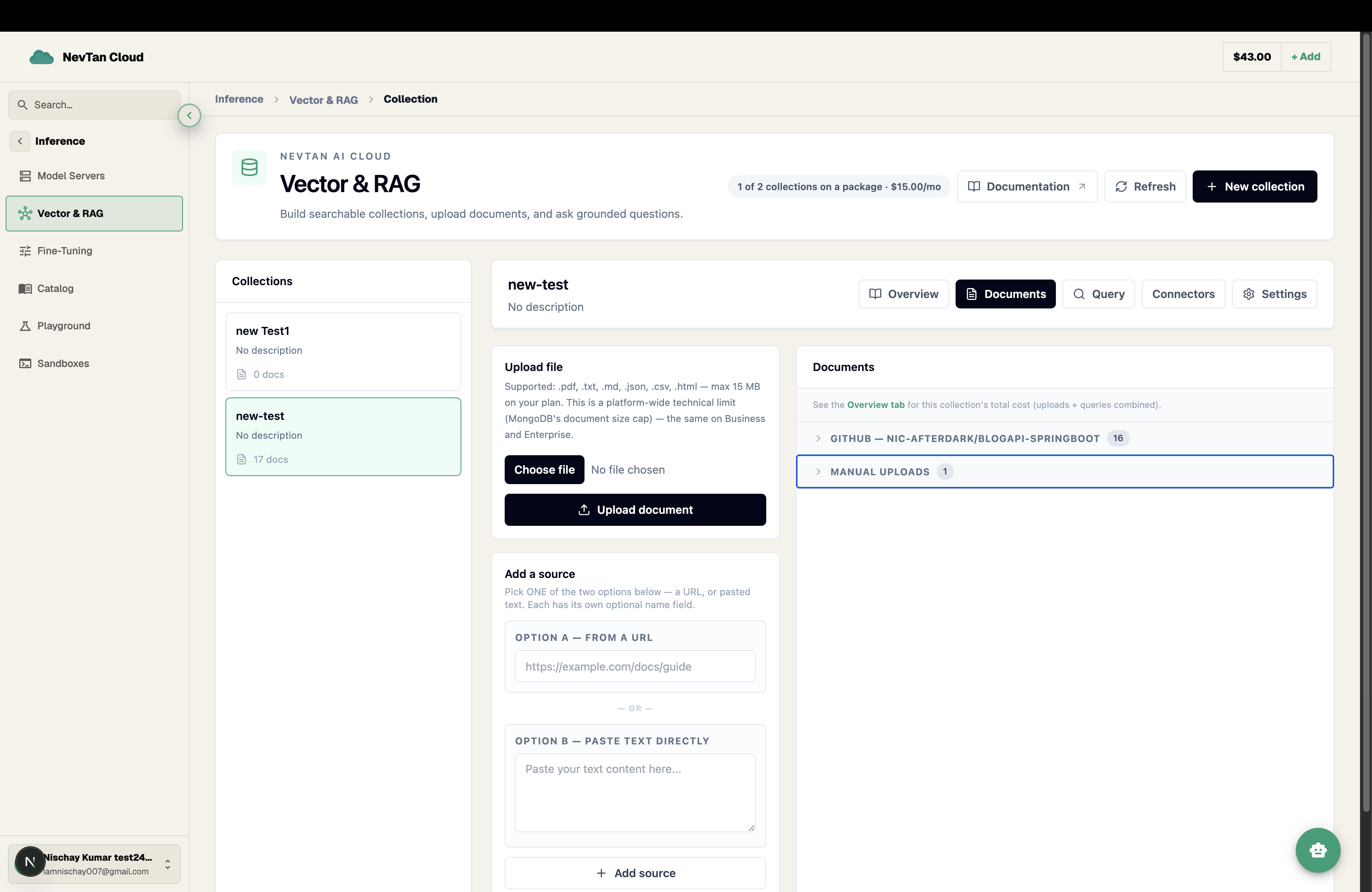
- 1Open the Documents tabFrom inside a collection, open Documents to see everything already added.
- 2Choose upload or pastePick Upload file to add a PDF, Markdown, or text file, or Paste text to type or paste content directly, along with a title.
- 3Add optional metadataTag the document with a source or category so it's easy to identify in search results later.
- 4ConfirmThe document appears in the list right away and becomes searchable once embedding finishes.
What makes a document chunk well
Chunking splits a document along its text, so how the source content is written and structured has a direct effect on how clean the resulting chunks are — and how good retrieval feels later.
- Chunks well — content with clear headings and self-contained paragraphs, like a help article organised by topic, a FAQ with one question per entry, or a spec broken into short numbered sections. Each chunk boundary tends to land between ideas rather than across the middle of one.
- Chunks poorly — a single wall of text with no headings or paragraph breaks, since a chunk boundary can land in the middle of a thought with nothing in the surrounding text to signal it. Tables and multi-column layouts extracted from a PDF can also come through as jumbled text, since the visual structure that made them readable doesn't survive extraction.
- Splitting one huge document into several smaller, topic-scoped documents before uploading — instead of one giant file covering everything — usually produces cleaner chunks and more precise search results than relying on chunking alone to do the separating.