GitHub
Connect your GitHub account from the console to deploy repositories, and browse repos, branches, and commits when creating a project.
Connecting GitHub lets NevTan see your repositories so App Platform can build and deploy them. Connect once from the console, and every later step — picking a repo, a branch, or enabling auto-deploy — just works.
Why connect GitHub
App Platform is git-based — every project traces back to a repository and branch. The GitHub connection is what makes that possible end to end:
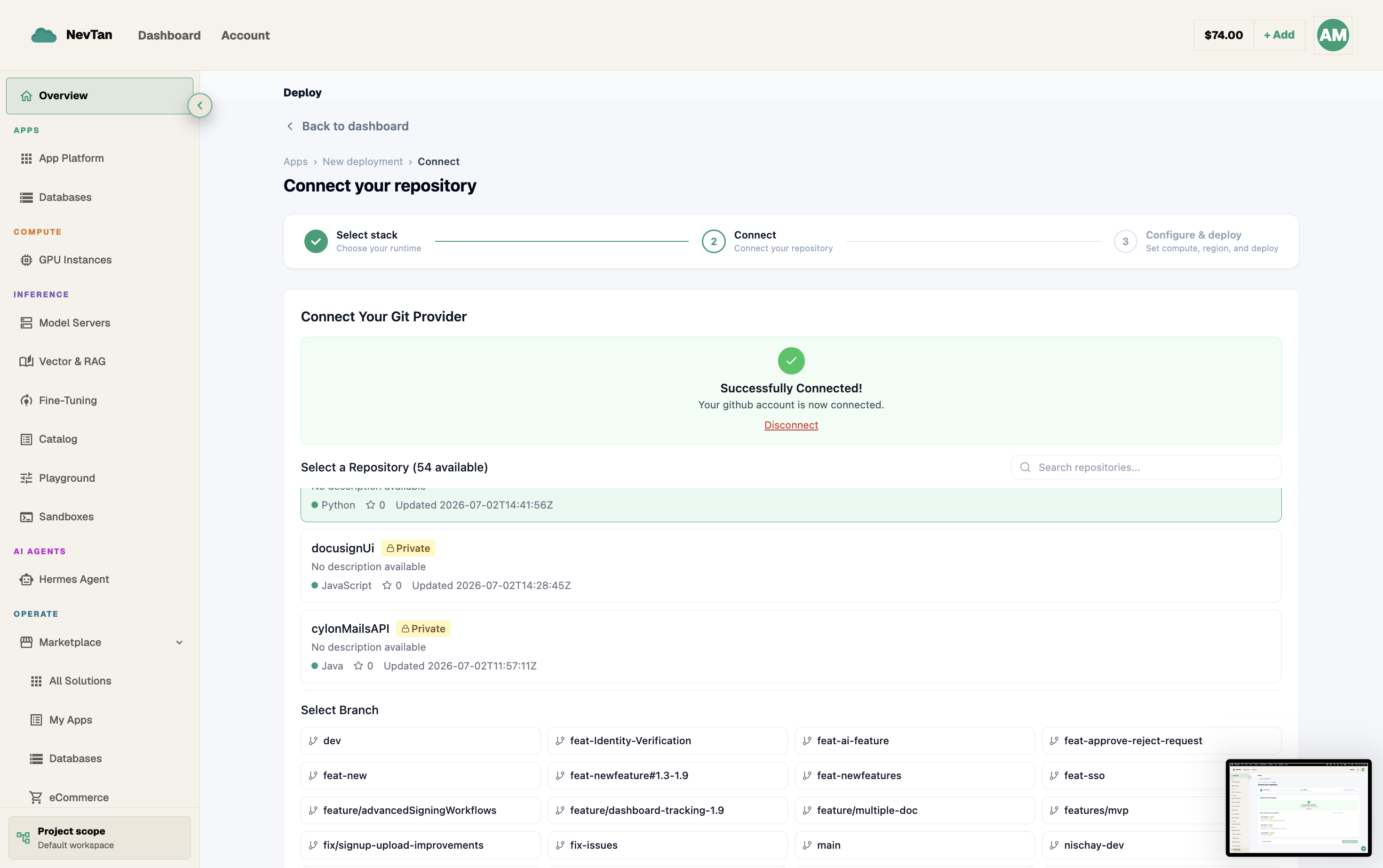
- Browsing — once connected, the console lists your repositories, branches, and commits so you can pick exactly what to deploy.
- Building — NevTan reads the repo contents to detect your framework (or your
Dockerfile) and produce a build. - Auto-deploy — turning on auto-deploy connects the project to pushes on that repo, so a push to your deploy branch ships a new version automatically.
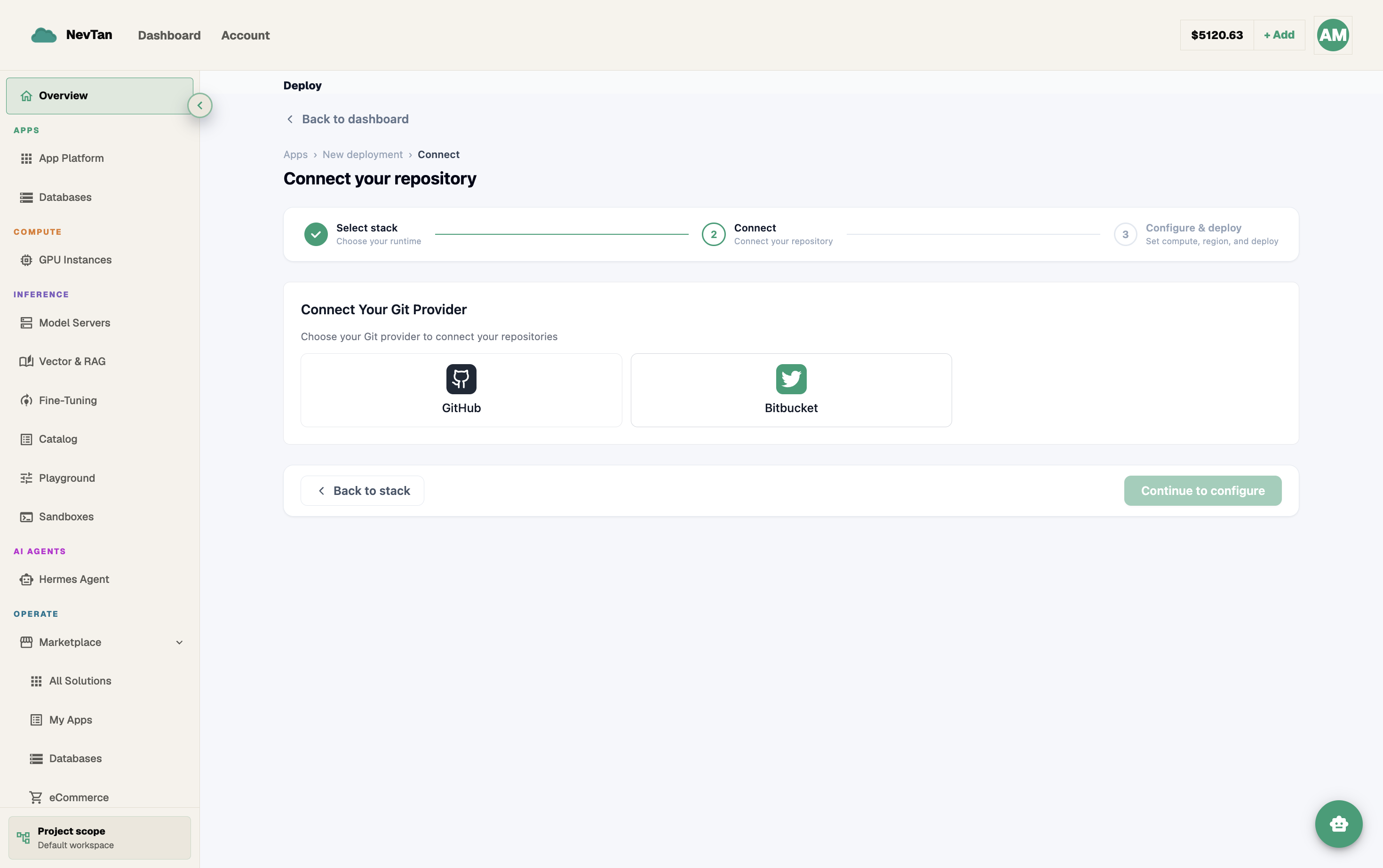
Connect your account
- 1Open IntegrationsFrom Account → Integrations, find the GitHub card and click Connect.
- 2Approve on GitHubYou're sent to GitHub's consent screen. Review the requested access and approve it.
- 3Back in NevTanYou land back on the dashboard with GitHub shown as connected — your repositories are now visible when you create or configure a project.
Private repositories
The connection isn't limited to public code. During the GitHub consent step you choose which repositories — private or public — NevTan is allowed to see, and only those show up later in the console's repo picker. A private repo you don't grant access to simply never appears, even after connecting; there's no separate step to "share" it later beyond re-approving access on GitHub's side.
Reconnect or disconnect
If GitHub shows as disconnected — because access was revoked on GitHub's side, or permissions changed — the same card offers Reconnect, which repeats the approval step.
What disconnecting actually changes
- Auto-deploy stops — a project can no longer notice pushes to its branch, since NevTan no longer has access to read the repo.
- Already-deployed projects keep running — disconnecting doesn't stop, delete, or roll back anything currently live.
- Picking a new repo or branch is unavailable — for that project or a new one — until you reconnect.
- Manual redeploys of the existing build still work, since they don't need to re-read the repo.
Browse repositories, branches & commits
Once connected, the Deploy from git screen lists your repositories, and picking one lets you choose a branch and browse its recent commits — everything you need to pick exactly what to deploy, without leaving the console.