
Files
Browse a sandbox's filesystem from the console — upload files in, view or edit them, and delete what you no longer need.
Every sandbox has a file browser in the console for its filesystem — upload files in, open and edit them, or delete what you don't need, all without leaving the page.
Browse files
Open the Files tab on a sandbox to see its directory tree. Click into any folder the same way you would in a desktop file manager.
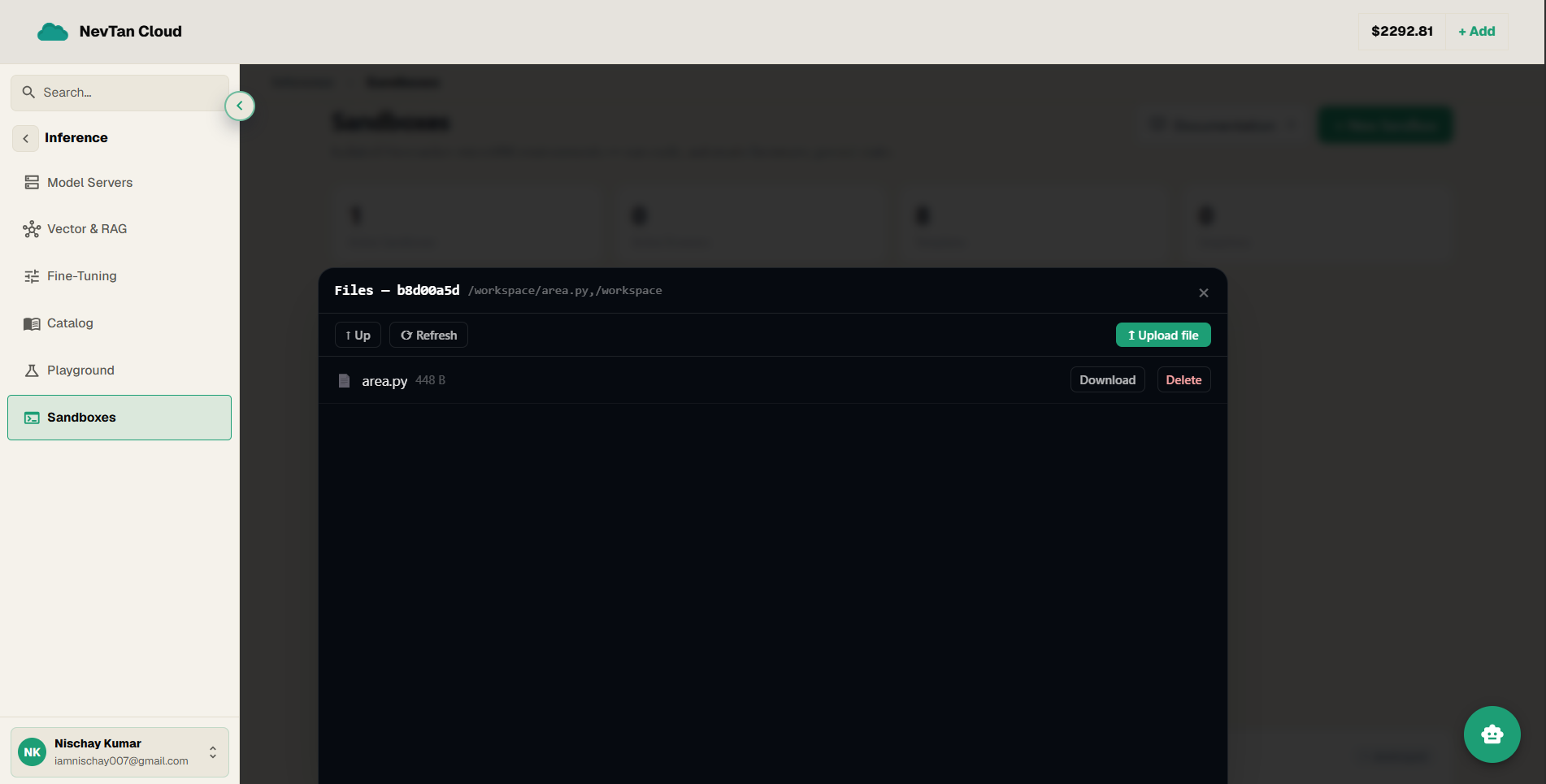
Upload a file
Click Upload and choose a file from your computer — a dataset, a config file, a script — to drop it into the sandbox before running code against it.
View and edit a file
Click any file to open it in the built-in viewer. Text files open in an editor you can change and save directly; the next code you run sees the update immediately.
Download a file
Once code running in the sandbox has produced something — a report, a processed dataset, a build artifact — click Download on that file to pull it back to your computer.
Delete a file or folder
Select a file or folder and click Delete to remove it from the sandbox.
A realistic workflow
- 1Upload the datasetClick Upload and pick the CSV, JSON, or other data file from your computer.
- 2Write the scriptOpen a new file in the editor and write a short script that reads the uploaded file, does the transformation you need, and writes an output file.
- 3Run itSwitch to Run code and execute the script. The file browser reflects any new or changed files as soon as the run finishes.
- 4Download the resultOpen the output file in the file browser and click Download to pull it back to your computer.