
Environment variables
Set environment variables and secrets on a project from the redeploy screen, then redeploy to apply them.
Apps read configuration and secrets from environment variables. On App Platform, env vars live on a project's redeploy screen — you set them, then redeploy so the new container boots with them.
How it works
Open the redeploy screen to see the existing environment, add or change values, and click redeploy. The change takes effect on the next rollout, with no downtime.
- 1Open Configure and expand ConfigurationFrom the project page, click Configure. The Configuration section is expanded by default, showing Custom Install Commands, Custom Build Commands, Custom Run Command, and Environment Variables.
- 2Add an environment variableType a KEY and a value into the two fields and click the + button. Existing variables are listed as inline-editable KEY=value rows below, each with its own trash-icon delete button.
- 3Adjust anything else while you're hereThe same screen also has Port (leave at 0 for auto-detect), Root Directory (default
/), and a Use PM2 for process management checkbox that reveals a PM2 process name field if you check it. - 4Click DeployThe footer's Deploy button (rocket icon) redeploys with everything you've changed — env vars, commands, port, and Dockerfile edits all apply together in the same rollout.
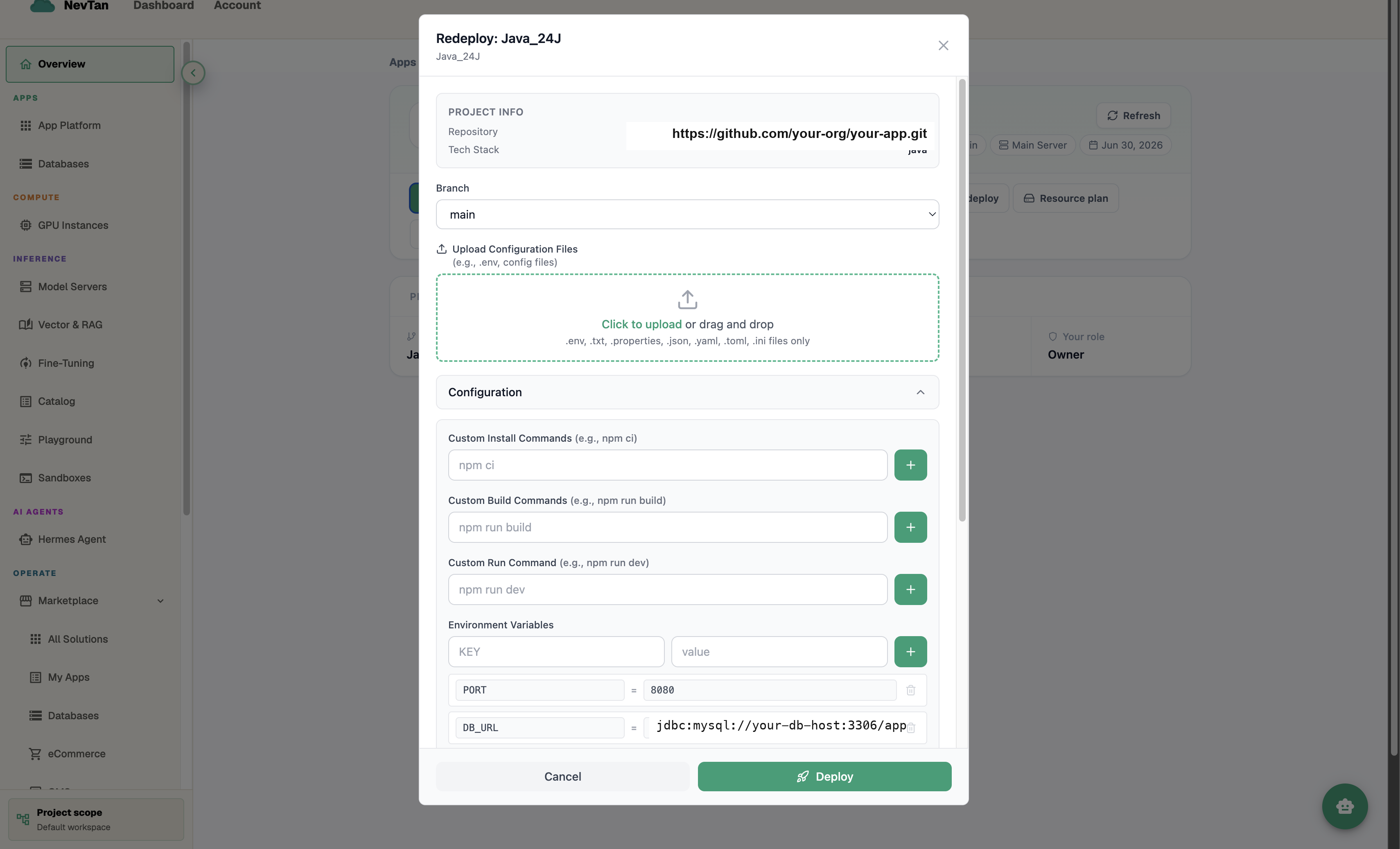
Keeping env vars out of your repo and in the redeploy screen means you can rotate a key or point at a different database without touching code or triggering a new build from source — just redeploy the existing image with the updated config.
Important
Never commit secrets to your repo. Set them as environment variables here instead, and treat them like passwords — see Account & security.
Note
Env var changes only take effect after a redeploy — saving the config alone does not restart the running container.