
Monitor keys
Create a monitor key for an app you run outside NevTan, see it listed with live up/down status, and view its metrics.
A monitor key identifies one of your own applications to NevTan's monitoring. Create a key from the console, then use it to connect the NevTan agent running alongside that app — from then on, its metrics show up here.
Create a key
- 1Open Monitor KeysFrom the Monitoring section in the sidebar, open the Monitor Keys page.
- 2Create a keyClick Create Key, give it a name that identifies the app it's for (for example, "billing-service-prod"), and confirm.
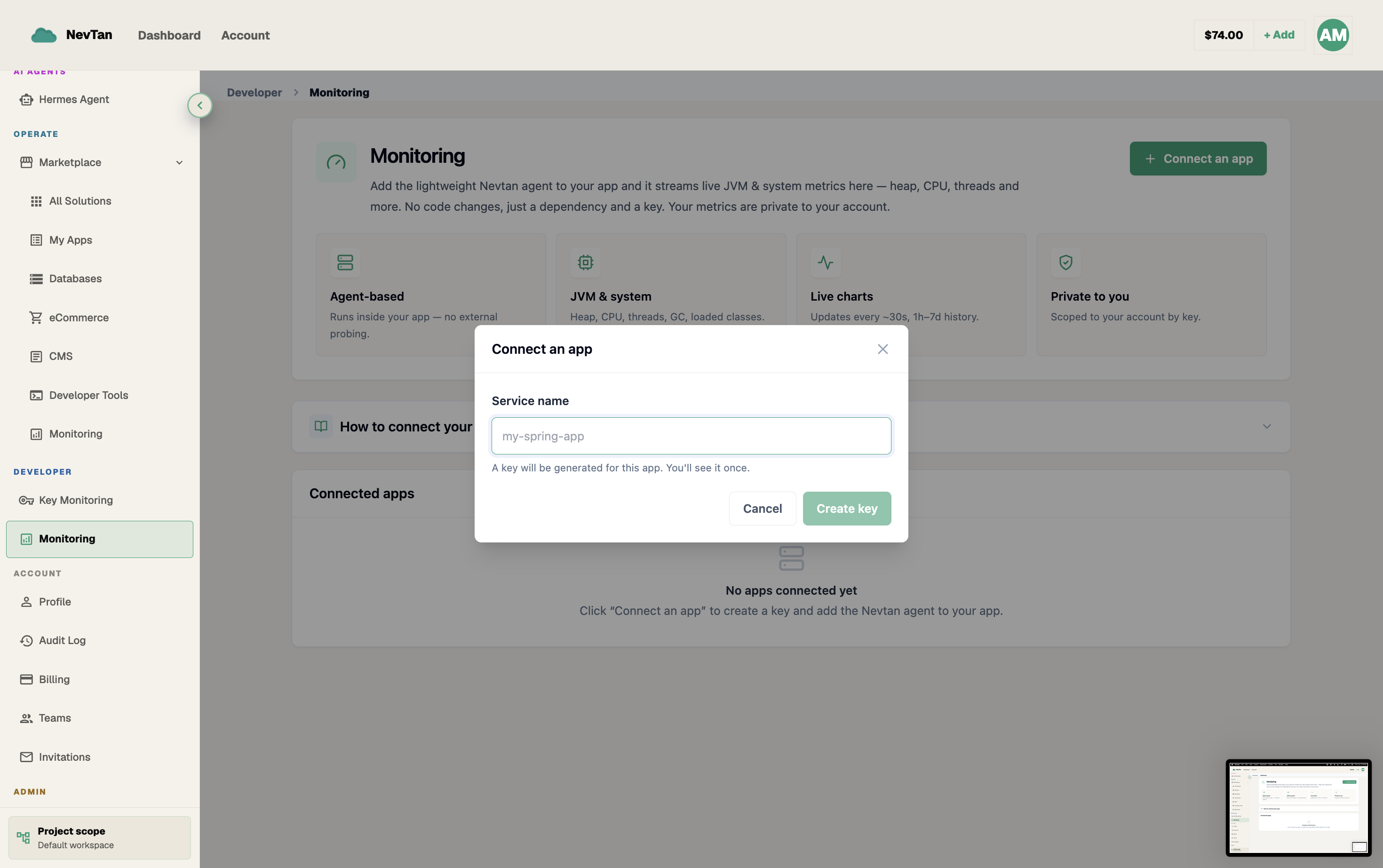
Name it clearly — it's the only thing telling keys apart later. - 3Copy the keyThe key value is shown once. Keep it somewhere safe — you'll paste it into the agent's configuration next, in Ingesting metrics.
How a key goes from idle to reporting
Managing keys
The Monitor Keys list shows every key you've created, each with a live up or down badge based on whether that app has reported recently. Open a key to view its metrics, or delete a key you no longer need — deleting it stops that app from appearing in your dashboards.
| Field | Description |
|---|---|
| Name | A label you choose so you can tell keys apart at a glance. |
| Status | Up if metrics arrived recently, Down if the app has stopped reporting. |
| Created | When the key was generated. |
Naming keys so they stay identifiable
The name field is the only thing that tells keys apart in the list, so it's worth choosing one you'll still recognize months later. A pattern that scales well is <app>-<environment>, or <app>-<environment>-<region> once you have more than a handful of keys — for example billing-service-prod, billing-service-staging, or checkout-api-prod-eu. Naming by what the app is and where it runs, rather than something generic like "server 1" or the date you created it, means the name still makes sense long after you've forgotten the context you created it in.