
Snapshots
Save a sandbox's current state with a console button, then restore it into a new sandbox later.
A snapshot saves a sandbox's filesystem — installed packages, uploaded files, anything you've created — so you can pick up right where you left off later, in a brand-new sandbox.
Take a snapshot
- 1Get the sandbox readyInstall whatever packages you need and get your files in place — this is the state the snapshot will capture.
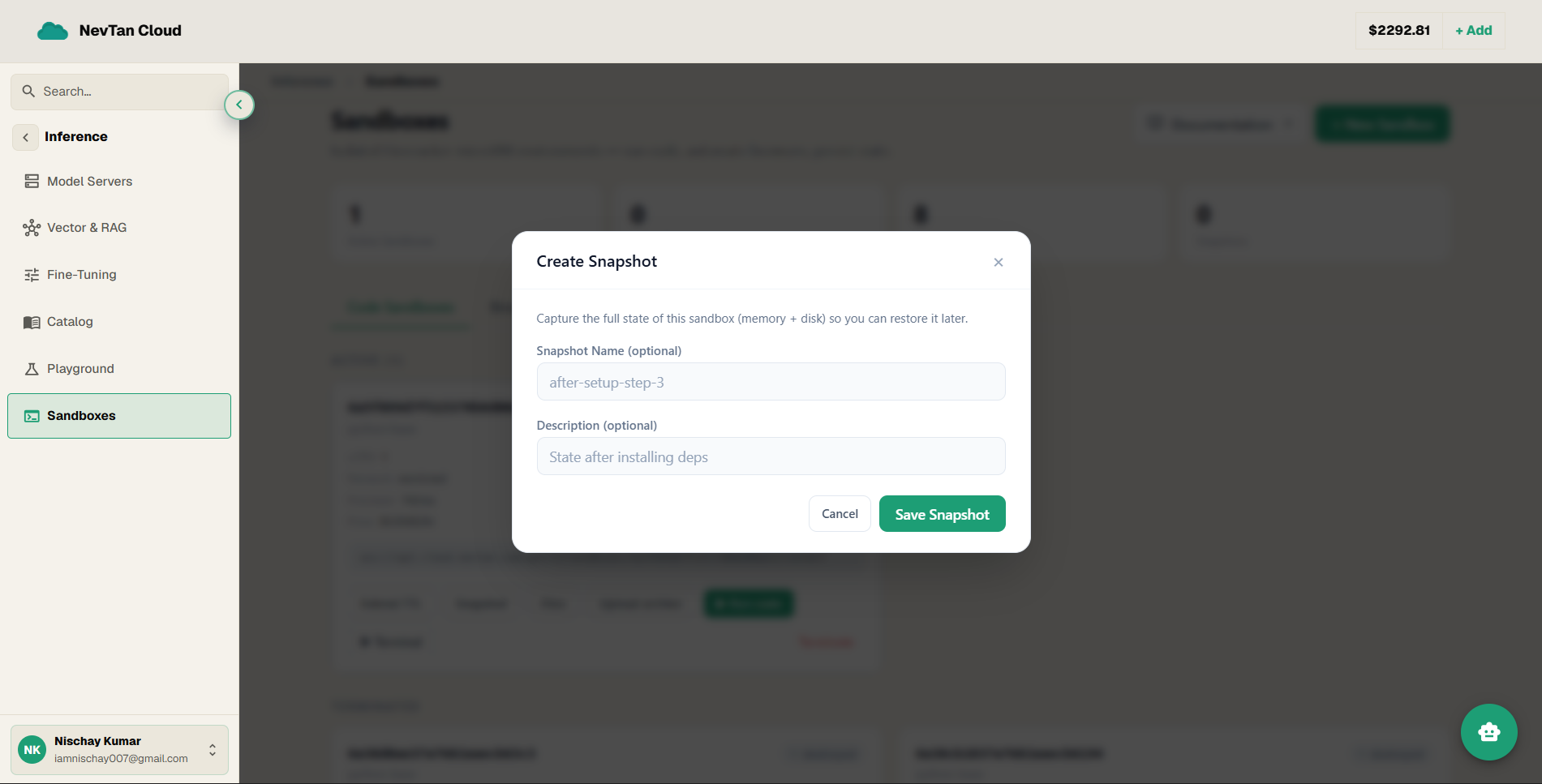
- 2Click SnapshotFrom the sandbox's console, click Snapshot and give it a name. The sandbox keeps running; the snapshot is a separate saved copy of its filesystem at that moment.
Restore a snapshot
On the create sandbox form, choose Start from a snapshot instead of a template, and pick one from the list. The new sandbox boots with that filesystem already in place.
Manage your snapshots
The Snapshots page lists every snapshot you've saved. Delete one you no longer need to free it up.
Snapshot or template?
Reach for a snapshot when you want to resume exactly where you left off — the same files, the same installed packages, the same in-progress work, captured at a specific moment. Reach for a template when you want a fresh, known-good starting point instead — no leftover files or half-finished work, just the base environment (say, Python with a couple of libraries pre-installed) that you build on from scratch each time.