
Bitbucket
Connect Bitbucket from the console and browse your repositories for deployment.
Prefer Bitbucket? The connection works the same way as GitHub: approve NevTan from Account → Integrations, then browse your repositories to deploy them on App Platform.
Why connect Bitbucket
App Platform builds from a repository and branch, whichever git host it lives on. Connecting Bitbucket gives the console the same visibility it would get from GitHub — enough to list repos, pick a branch, and pull the source for a build. See Deploy from git for the deploy flow itself.
Connect your account
- 1Open IntegrationsFrom Account → Integrations, find the Bitbucket card and click Connect.
- 2Approve on BitbucketReview the requested access on Bitbucket's consent screen and approve it.
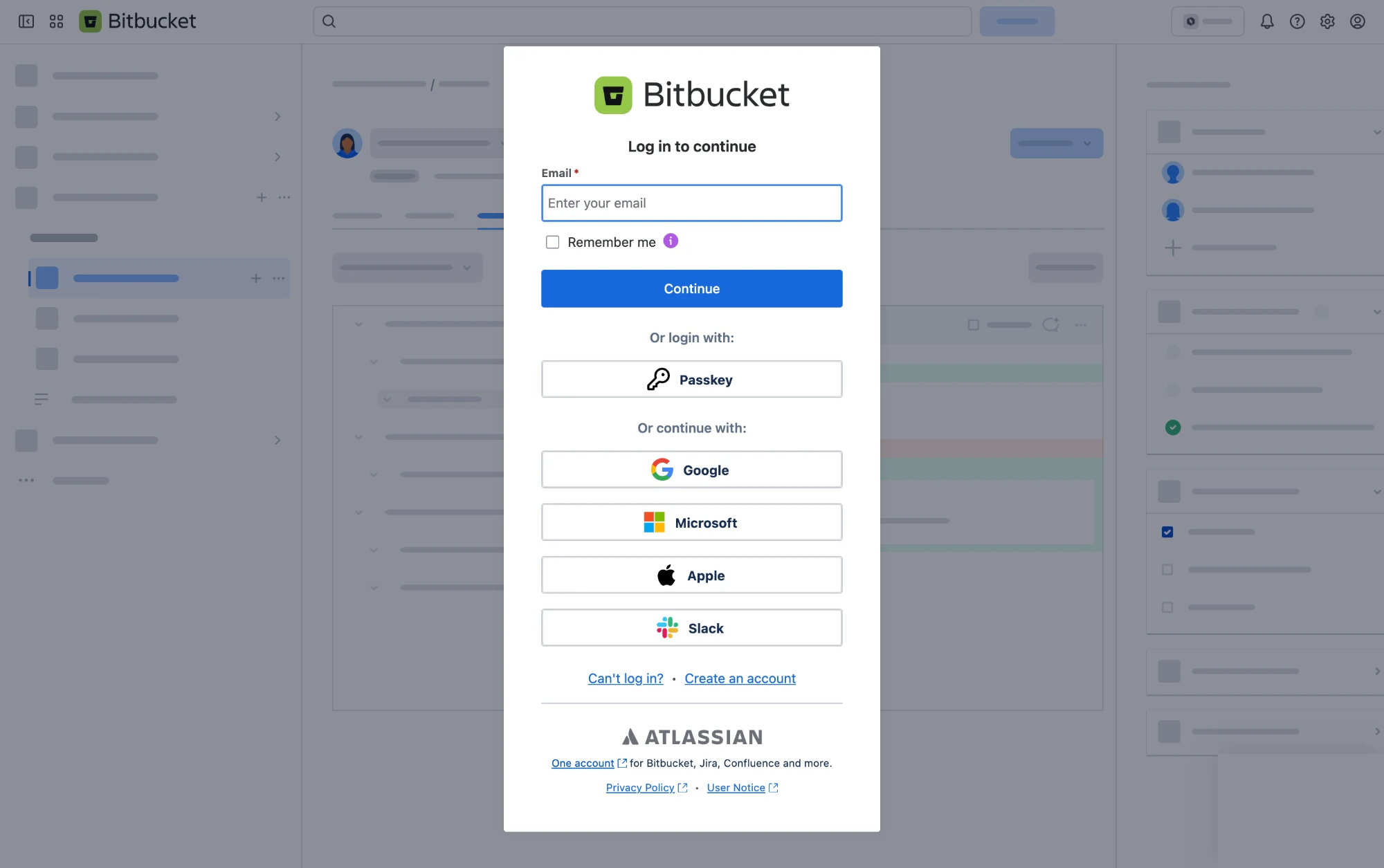
You approve access on Bitbucket's own screen — NevTan never sees your credentials. - 3Back in NevTanYou land back on the dashboard with Bitbucket connected — your repositories are now available when you create a project.
Browse repositories
The Deploy from git screen lists your Bitbucket repositories with search and paging built into the picker, so you can scroll through as many repos as your account has without any setup beyond the initial connection.
Private repositories
As with GitHub, the consent screen is where you choose which repositories — private or public — NevTan can see. Only the ones you approve show up in the picker; anything you didn't grant access to stays invisible until you go back and approve it.
Reconnect or disconnect
If the Bitbucket card shows as disconnected, click Reconnect to repeat the approval step. Disconnect removes the connection entirely: any project already deployed keeps running exactly as it is, but auto-deploy on that project stops noticing new pushes, and you won't be able to pick a new repo or branch until you reconnect.