
Connectors
Connect external sources like Google Drive, Notion, and GitHub from the console, then browse their content.
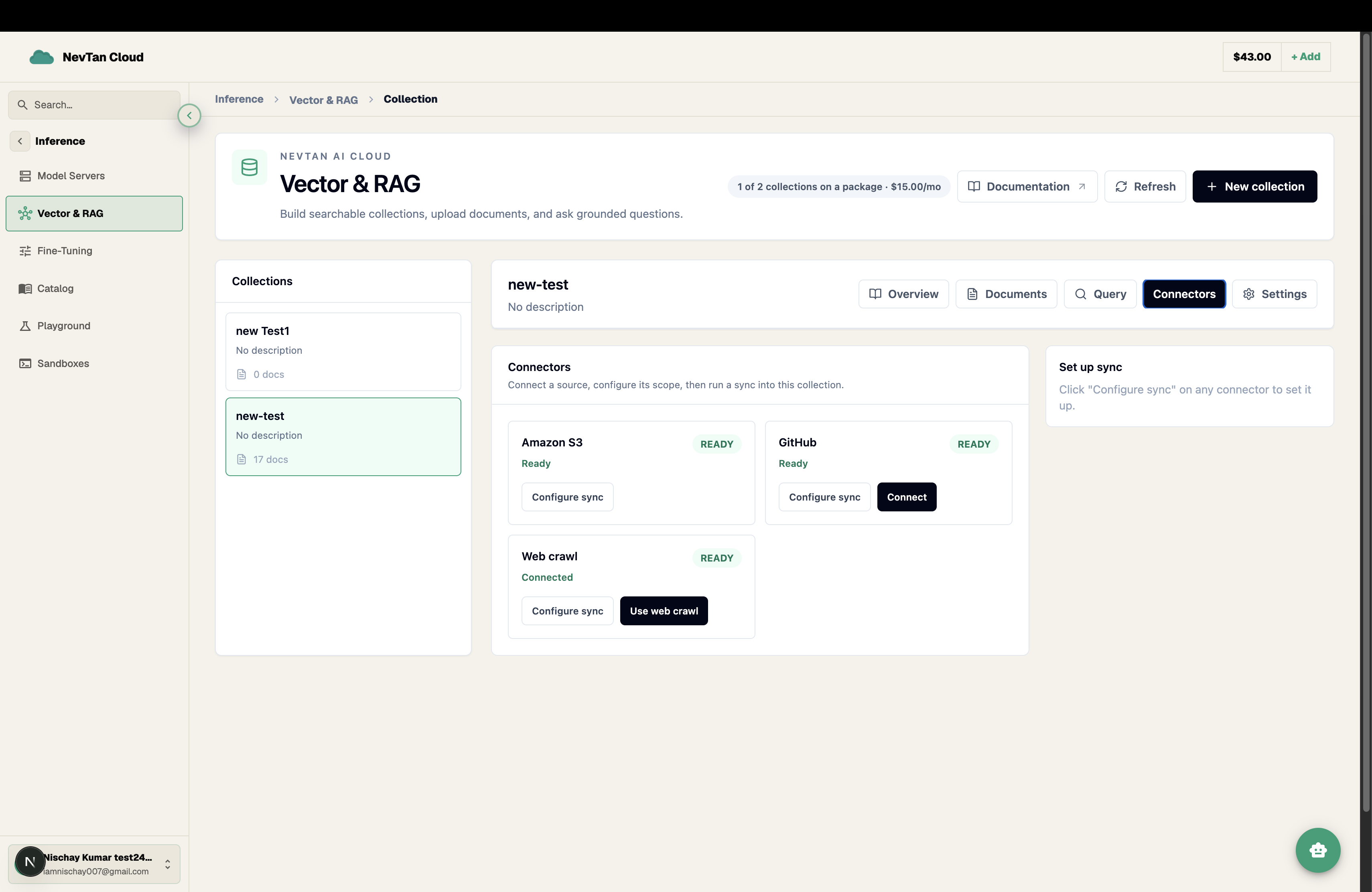
Connectors let you pull documents from external sources — Google Drive, Notion, GitHub — instead of uploading files by hand. Authorize a source once from the console, browse its content, and then feed it into a sync.
When to use a connector
Manual document upload is simplest for a handful of files that rarely change. Reach for a connector plus a sync instead when the source of truth already lives somewhere else and keeps changing — a shared Drive folder your team edits, a Notion knowledge base, or a GitHub repo of docs — so the collection tracks the source instead of drifting out of date.
Connect a source
- 1Open ConnectorsFrom the Vector RAG dashboard, open Connectors and pick a source type — Google Drive, Notion, or GitHub.
- 2AuthorizeSign in and grant access when prompted. NevTan stores the resulting connection against your account so it can be reused by any sync.
- 3Browse contentOnce connected, browse the folders, pages, or files available on the source to see what's available to pull in.
Worked example: a Notion knowledge base
Say your team keeps internal documentation as pages in a Notion workspace, and it changes every week as people edit it. Connecting Notion once means you never have to export and re-upload it by hand:
- Open Connectors, pick Notion, and authorize NevTan's access to your workspace.
- Browse the connected workspace and confirm the pages or database you want are visible — this is the same content a sync will later pull from.
- Move on to a collection's Syncs tab to actually schedule the pull — the connector only establishes access, a sync is what brings the content in.