
Run code
Type or paste code into the sandbox's in-console editor, click Run, and see the output in the console panel.
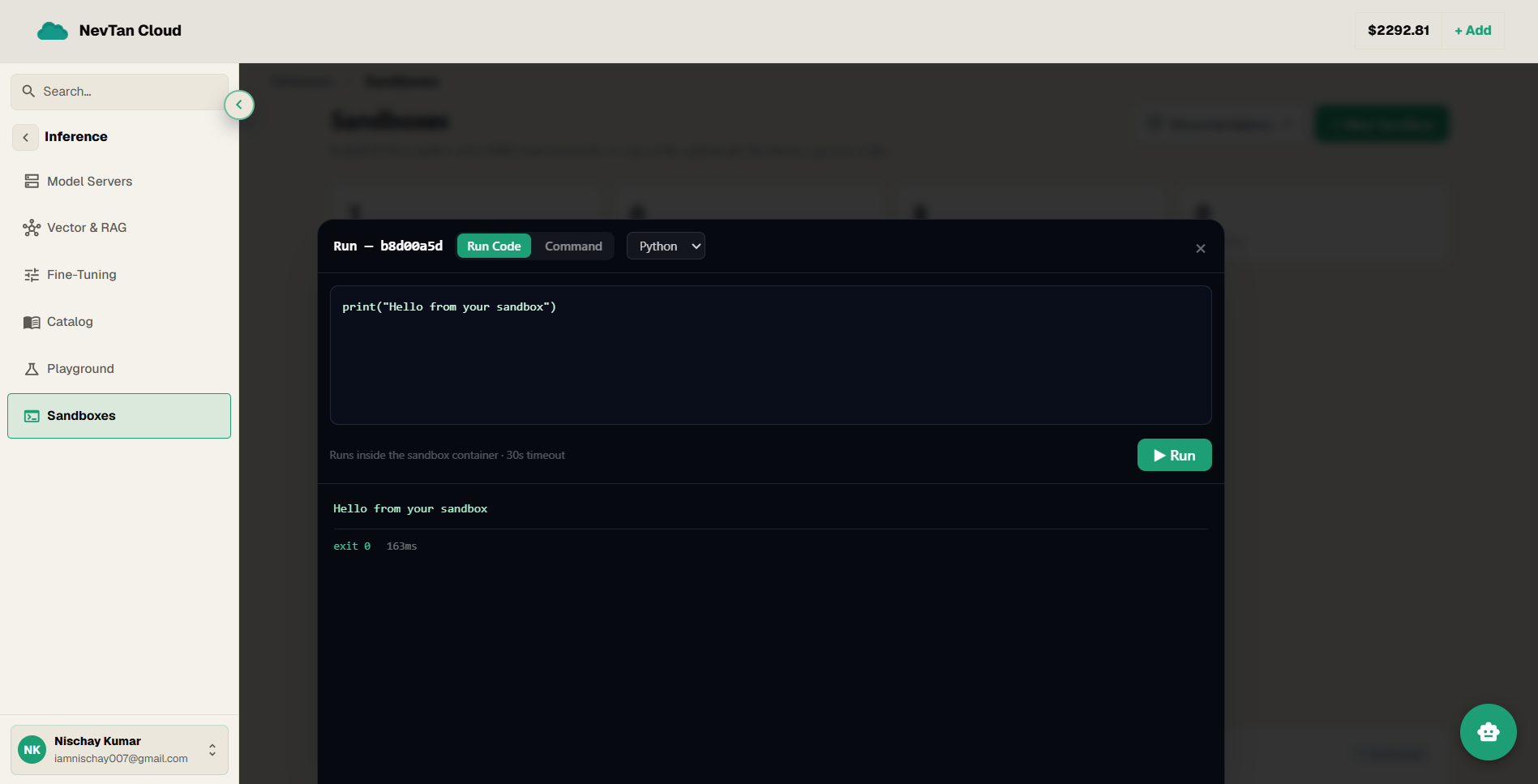
Every sandbox opens to a console with a code editor on one side and an output panel on the other — write or paste code, click Run, and watch the result come back live.
Run a snippet
- 1Open the sandboxFrom the Sandboxes page, click into a sandbox to open its console.
- 2Write or paste codeUse the built-in editor to write a script from scratch, or paste in something you already have — including a snippet an AI assistant gave you and you want to check before trusting it anywhere else.
- 3Click RunThe output panel shows what the code printed, live, as it runs.
- 4Read the resultStandard output and any errors both show up in the same panel, so you can see immediately whether it worked.
Run a terminal command
Switch to the sandbox's Terminal tab for anything that isn't a script — installing a package, inspecting the filesystem, or running a command-line tool. It behaves like a normal terminal, just running inside the sandbox instead of your own machine.
A typical scratch task
A common pattern: upload a dataset into the sandbox, write a short script in the editor to clean or reshape it, run it, and check the output in the panel before deciding whether it's worth keeping. If it works, download the result or snapshot the sandbox; if not, just delete it — nothing about the attempt touches anything outside the sandbox.