
Browsing apps
Filter the catalog by category, search by keyword, find featured apps, and read a single app’s details.
The catalog — the searchable list of every app you can deploy — is open to browse without signing in. Filter by category, search by keyword, or narrow the list to featured apps, then click the app you want when you're ready to deploy it.
Browse by category
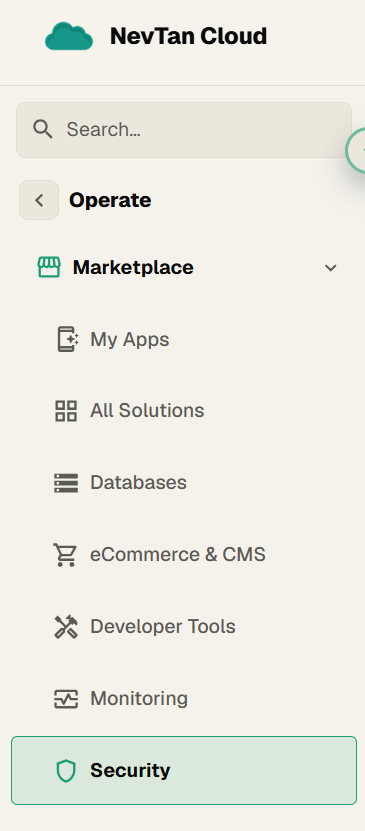
The Marketplace tab opens on a list of categories — Databases, E-commerce & CMS, Developer tools, Monitoring, and Security. Click a category to see only the apps in it. Categories exist so you can shop by problem ("I need a CMS") rather than needing to already know the name of the software that solves it.
Search and filter
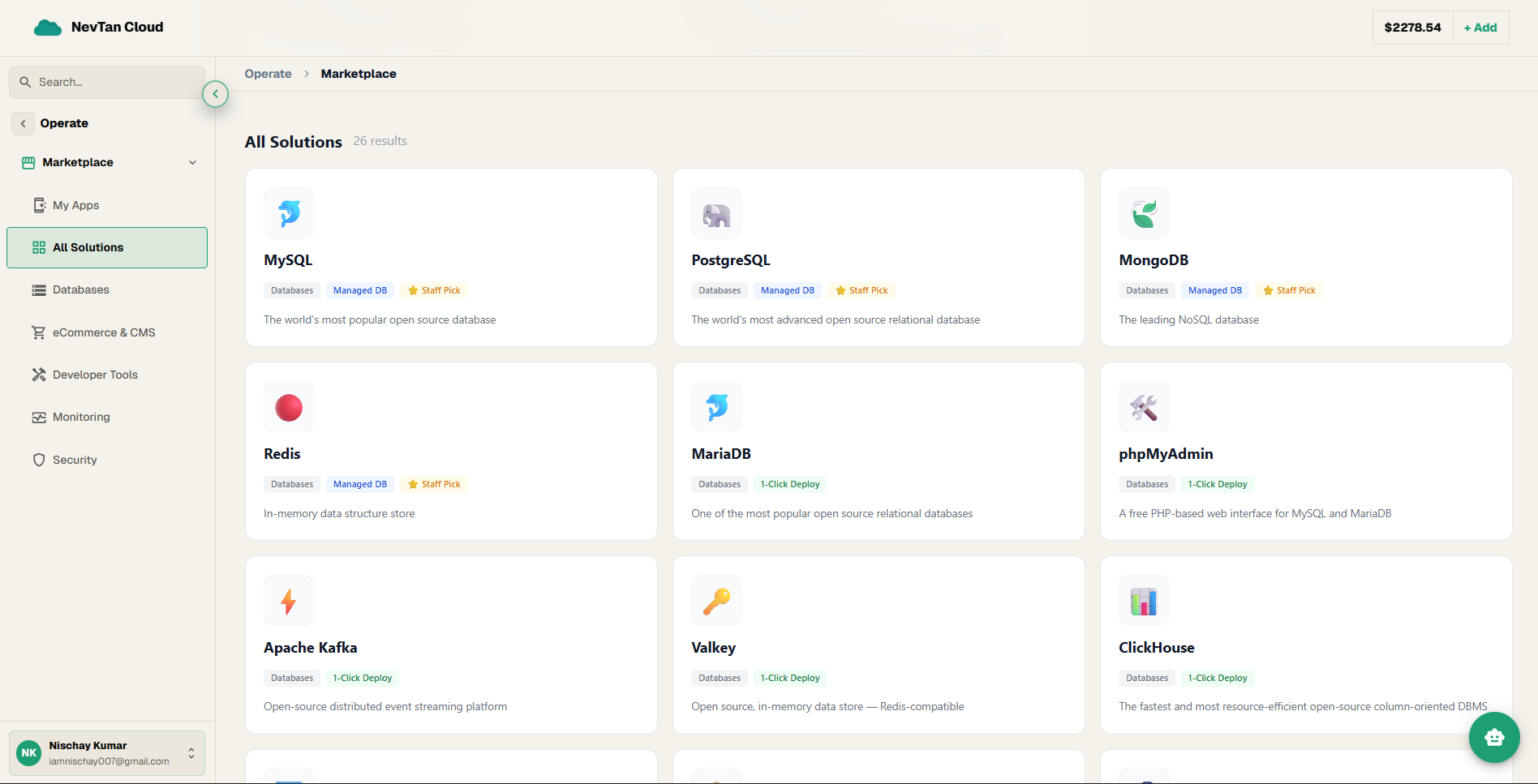
Use the search field and filters at the top of the catalog to narrow the list. These can be combined — for example, search "kafka" within Databases to jump straight to it, or search a keyword across the whole catalog without picking a category first.
| Parameter | Type | Description |
|---|---|---|
Category | dropdown | Narrow the list to a single category, such as Databases or Monitoring. |
Search | text | Type any part of an app's name or description — for example "git" finds Gitea even if you don't remember its exact name. |
Featured only | toggle | Switch this on to show only the shortlist of Staff Picks described below. |
Featured apps
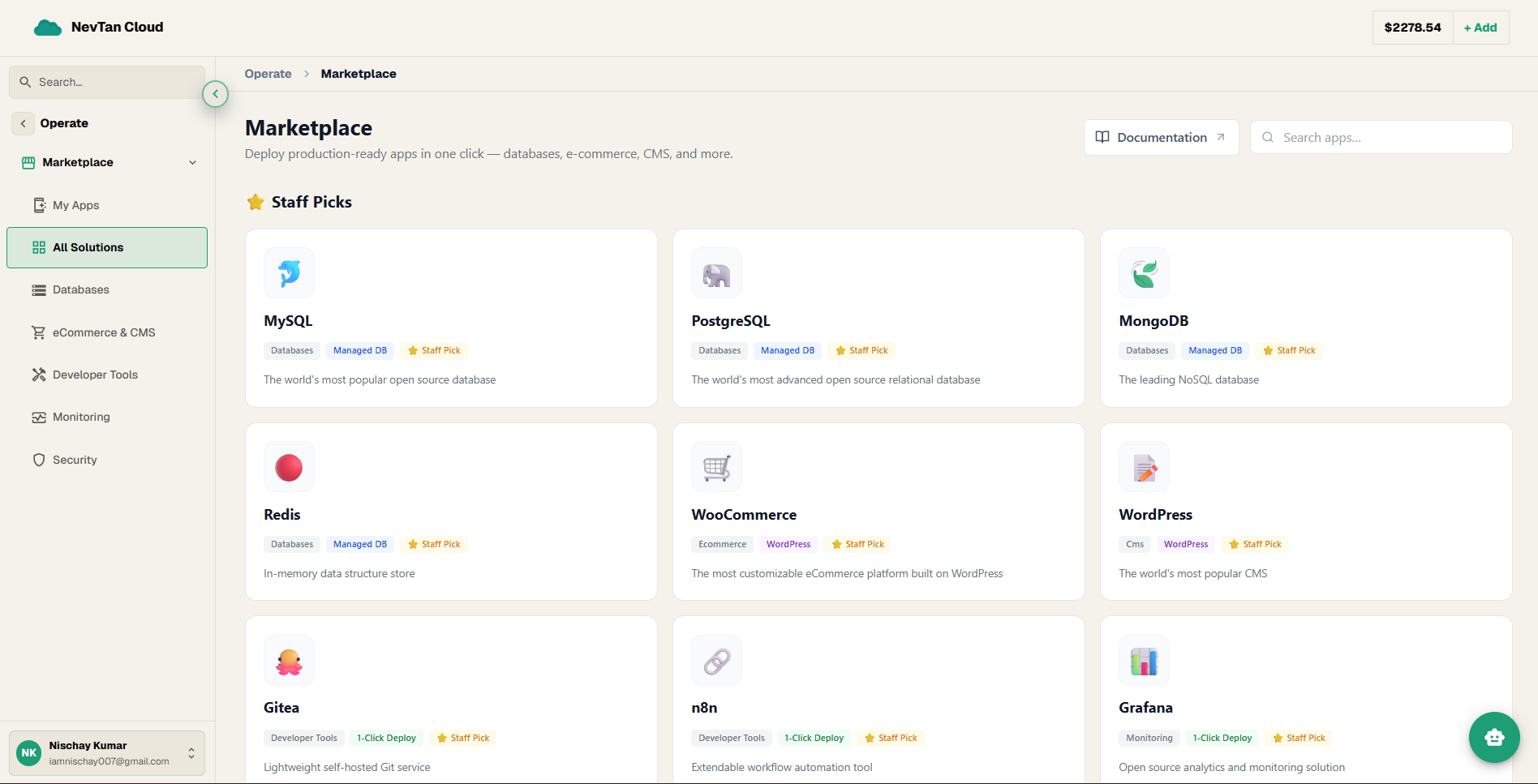
Featured apps are a shortlist of proven, popular picks across categories — a fast way to see what's worth deploying if you're browsing without a specific tool in mind yet. On the catalog they're marked with a small "⭐ Staff Pick" badge.
What happens when you click an app
Clicking any app card doesn't take you to a separate page — it slides in a panel from the right side of the screen. That panel shows the app's name and its deploy-type badge at the top, with the deployment form directly below it, ready to fill in. There is no extra "are you sure" screen in between; the panel you see when you click an app is the form you'll use to deploy it.