
Browse offers
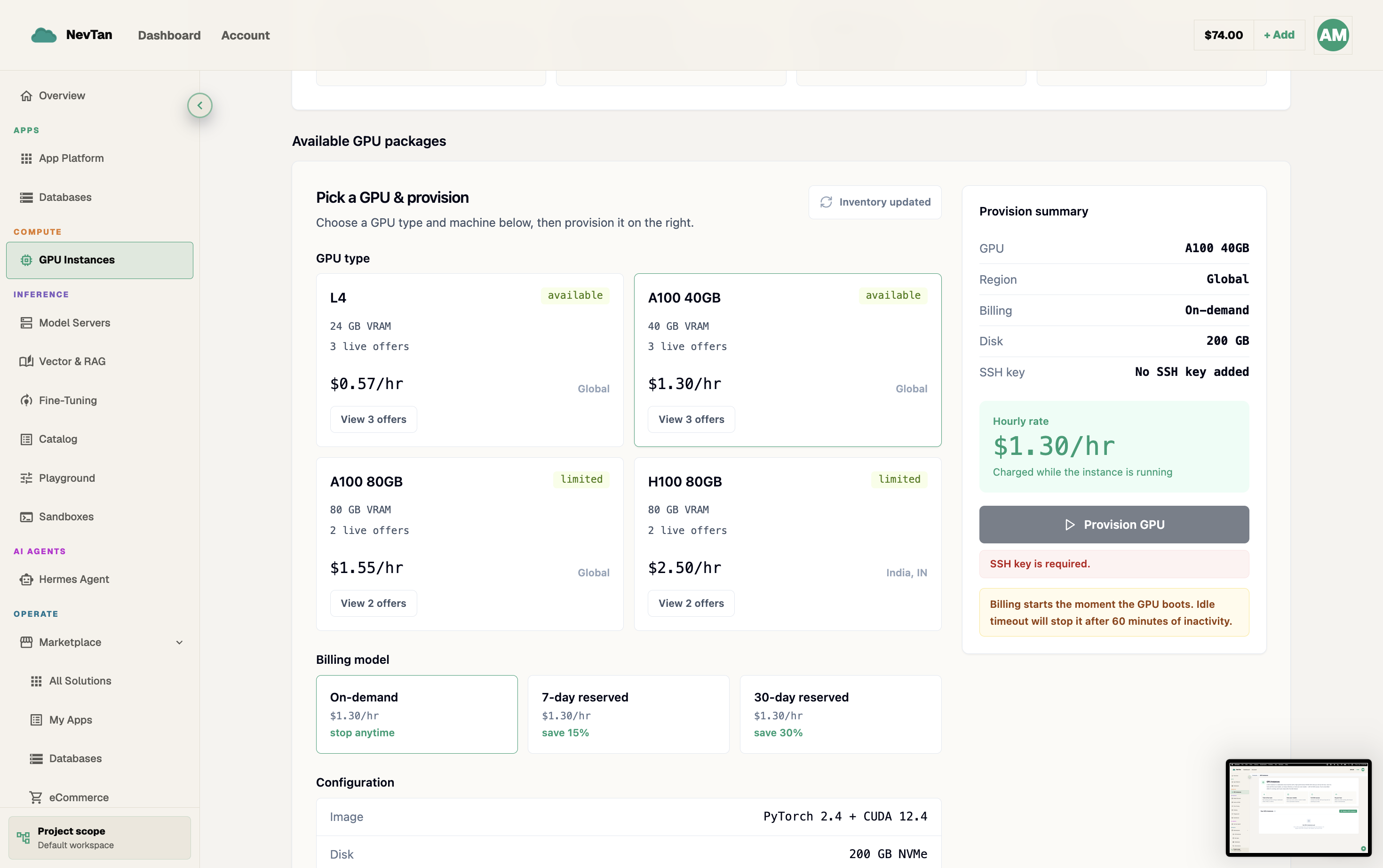
Filter the GPU catalog screen in the console — it spans the whole network and defaults to your account region.
Before you launch anything, use the GPU catalog screen to find an offer that matches your requirements.
The catalog screen
The catalog shows a single ranked list of GPU offers across the network, sorted by price and availability. Your account region is applied automatically, so you only need to set the filters you actually care about.
| Filter | What it does |
|---|---|
| GPU model | Match a specific card, e.g. H100, A100, RTX 4090. |
| GPU count | Number of GPUs required on the host. |
| Max price | Only show offers at or under a per-hour price (USD). |
Sizing for training vs. inference
The right filters depend heavily on what you're about to run:
- Inference (serving a model) — VRAM is the binding constraint: it has to hold the model weights plus room for the request batch. A single higher-VRAM GPU (count of 1) is usually enough for small-to-mid-size models; larger models need either a bigger single GPU or multiple GPUs working together.
- Training / fine-tuning — needs headroom for weights, gradients, optimizer state, and activations, which adds up to several times the model's inference footprint. Multi-GPU counts are common so the job can shard across devices, and fast interconnect between them matters more than it does for inference.
- Batch / data jobs — often more about raw throughput than VRAM ceiling; a wider price filter across more modest GPUs can be more cost-effective than chasing the top-end card.
A realistic search
Say you need a single mid-size GPU for inference and want to keep the hourly cost down. A typical pass through the catalog looks like this:
- 1Set the GPU model filterChoose the specific card family you need — e.g. A100 — instead of leaving it open to every hardware type.
- 2Set count to 1Most single-model inference workloads need exactly one GPU; only raise this if the model genuinely won't fit on one card.
- 3Leave max price generous at firstA loose price filter on the first pass shows the full spread of offers, rather than an artificially short list.
- 4Scan the ranked listOffers are sorted by price and availability — the top rows are your best combination of low cost and readiness right now.
- 5Tighten the price filterOnce you know the going rate for that GPU class from the first pass, narrow max price to rule out anything above it.
Reading the ranked results
Each row in the catalog is one offer, ranked primarily by price with availability as a tiebreaker. A lower position in the list usually means either a higher price or hardware that's currently harder to secure. If the top few rows cluster around a similar price, that's a good signal of the going rate for that GPU class right now — worth noting before you set a tighter max price filter.