Hermes Dashboard
A screen-by-screen tour of the Hermes Agent dashboard — Chat, Channels, Pairing, Sessions, Files, Models, Skills, Plugins, MCP, Cron, Webhooks, and Logs.
Every deployed Hermes has its own dashboard — a separate web app at the agent's own URL, which you sign into with the admin username and password you set at deploy. It is the agent's full control room, built by Nous Research: chat with it, connect messaging channels, manage its skills and models, schedule jobs, and watch its logs. This page walks through every screen.
The left menu lists all of these sections (this page groups them setup-first rather than in menu order). At the bottom it shows the gateway status (Running or stopped) and a Restart Gateway button — restarting is how newly enabled channels come online. It also shows the Hermes version and lets you switch theme and language, or sign out.
First steps
- 1Sign inOpen the agent's URL and sign in with the admin username and password you set at deploy.
- 2Connect a channelOpen Channels and enable one — for Telegram, the recommended Quick Setup scans a QR code and creates the bot for you.
- 3Restart the gatewayClick Restart Gateway so the enabled channel connects, then use the channel's Test button to confirm it.
- 4Approve who can talkWhen someone new messages the agent, approve their request under Pairing.
- 5Say helloMessage the agent on the channel, or use the dashboard's Chat to talk to it in the browser. Type
/helpfor commands.
Chat
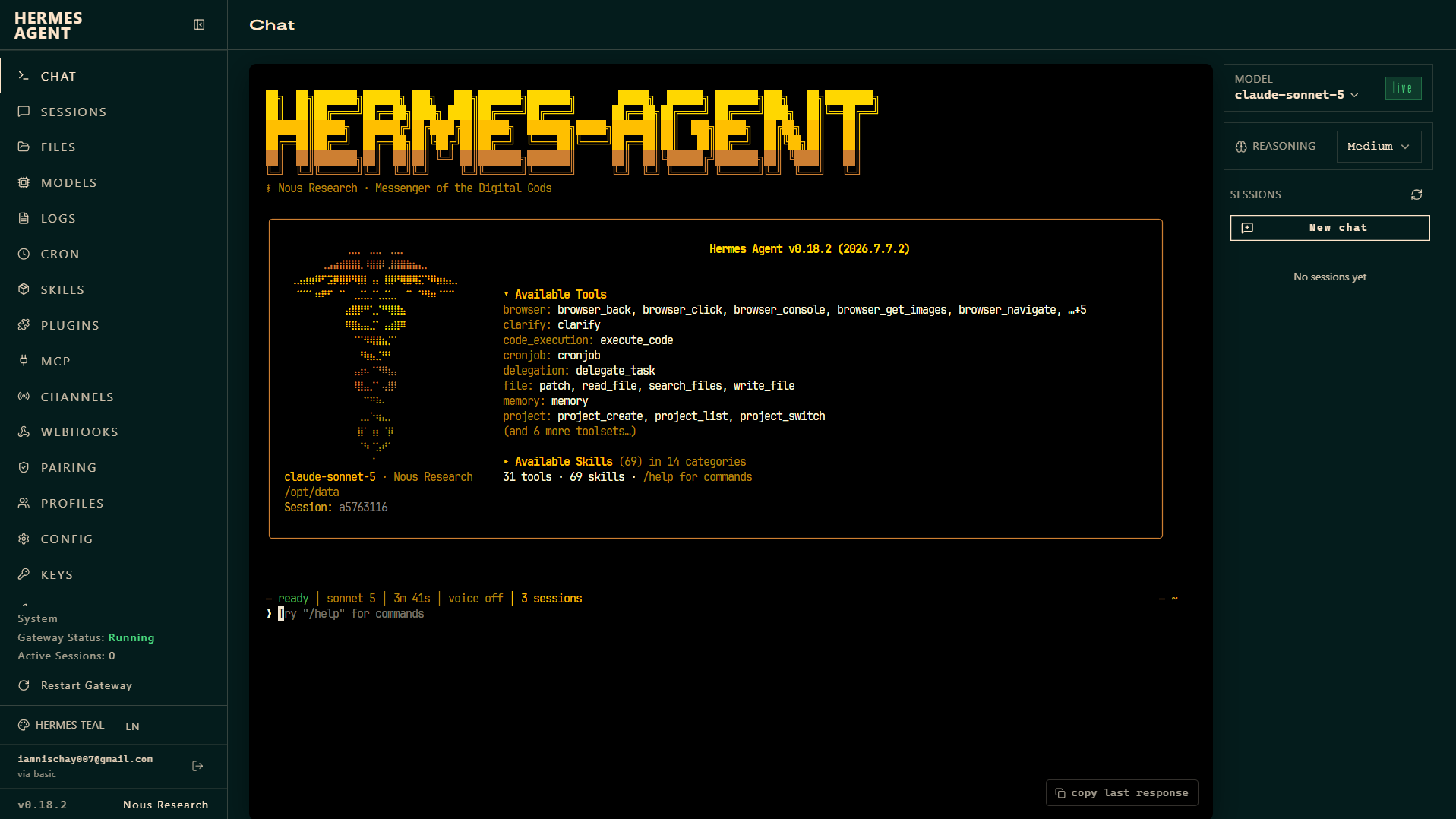
Talk to Hermes directly in the browser — no channel required. A banner at the top shows the agent's active model (for example claude-sonnet-5), its working directory, and the current session id, along with the count of available tools and skills and a /help hint. A status line beneath the conversation shows readiness, the model, and voice state. Use Chat to try the agent out before you wire up any channel, and the Model & tools and copy last response controls to inspect or reuse a reply.
Channels
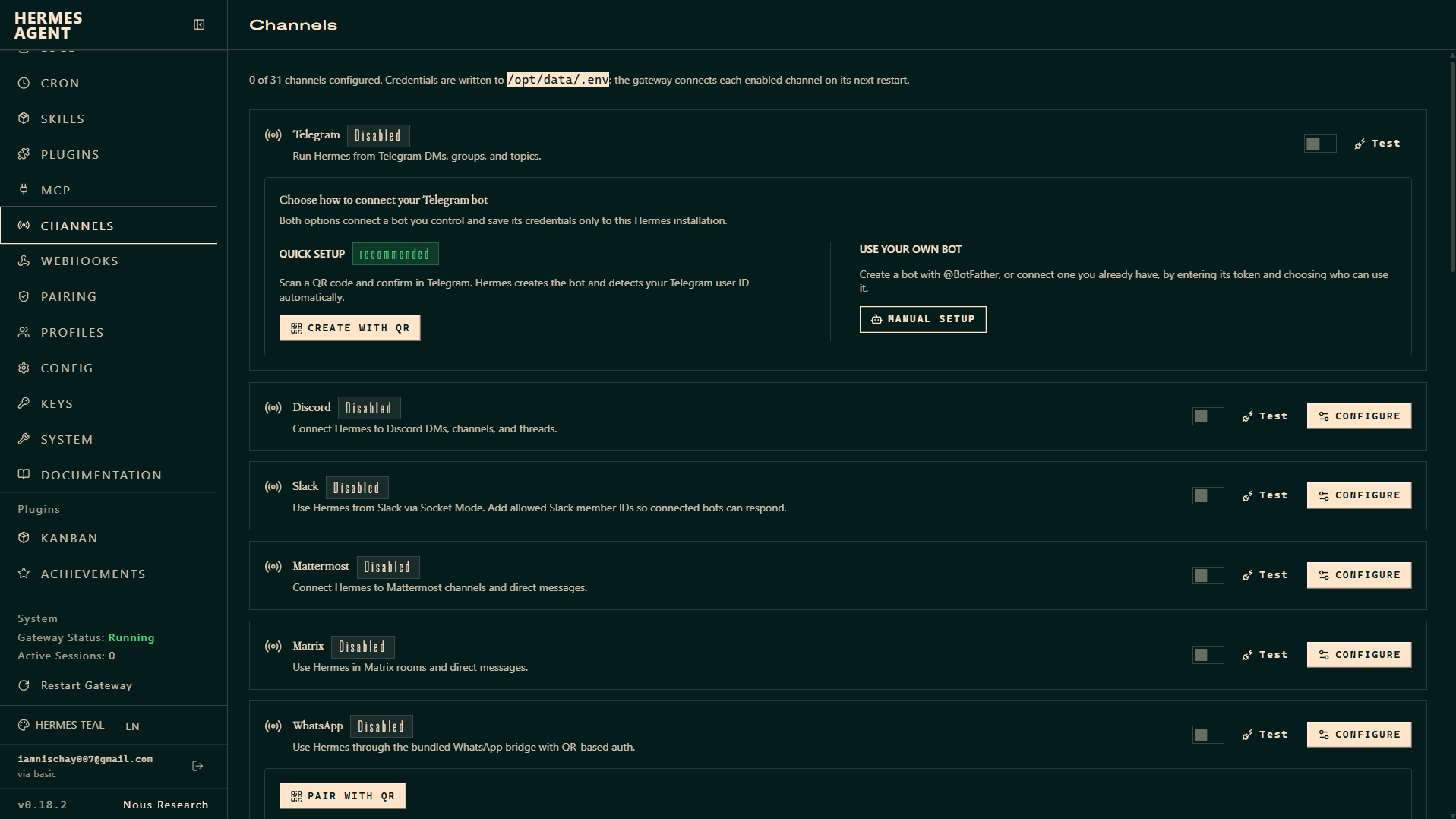
Connect the messaging channels people will use to reach Hermes. There are 31 connectors — Telegram, Discord, WhatsApp, and Slack, plus Signal, iMessage (via BlueBubbles), Matrix, Mattermost, Email (IMAP/SMTP), SMS (Twilio), Teams, and several China/Asia platforms — as well as an API server that exposes Hermes as an OpenAI-compatible HTTP API. Each channel has an enable toggle, a Test button, and its own setup form; credentials are saved only to this Hermes installation (in /opt/data/.env), and the gateway connects each enabled channel on its next restart.
- Telegram — the recommended Quick Setup scans a QR code, and Hermes creates the bot and detects your Telegram user ID automatically; or use Manual Setup with a token from @BotFather.
- WhatsApp — pairs with a QR code through the bundled bridge, with Bot or Self-chat modes and an allowed-numbers list.
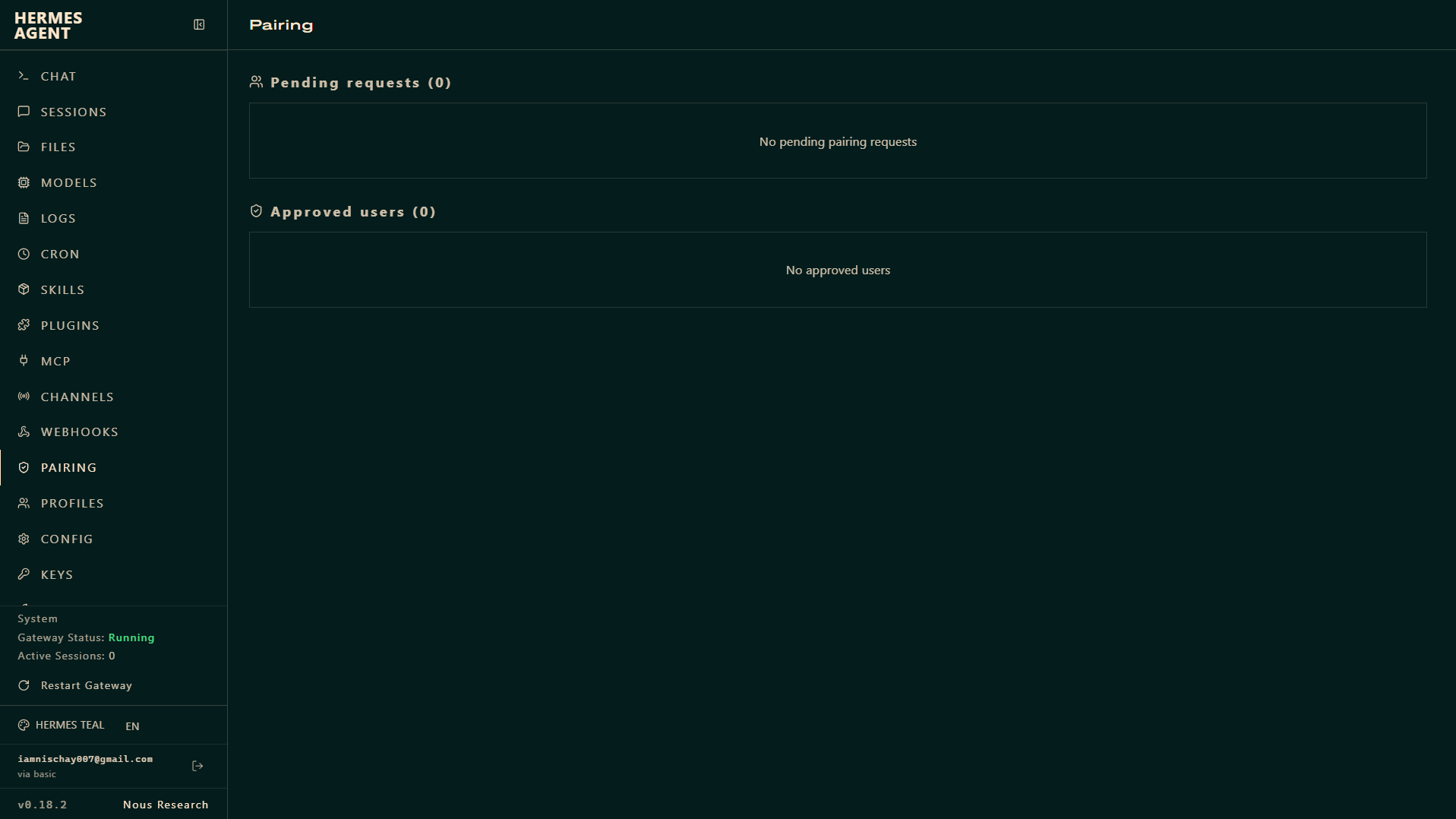
Pairing
Access control for who may talk to the agent. When a new person messages Hermes, their request appears under Pending requests for you to approve or deny; approved people stay in the Approved users list, so you can review or revoke access later.
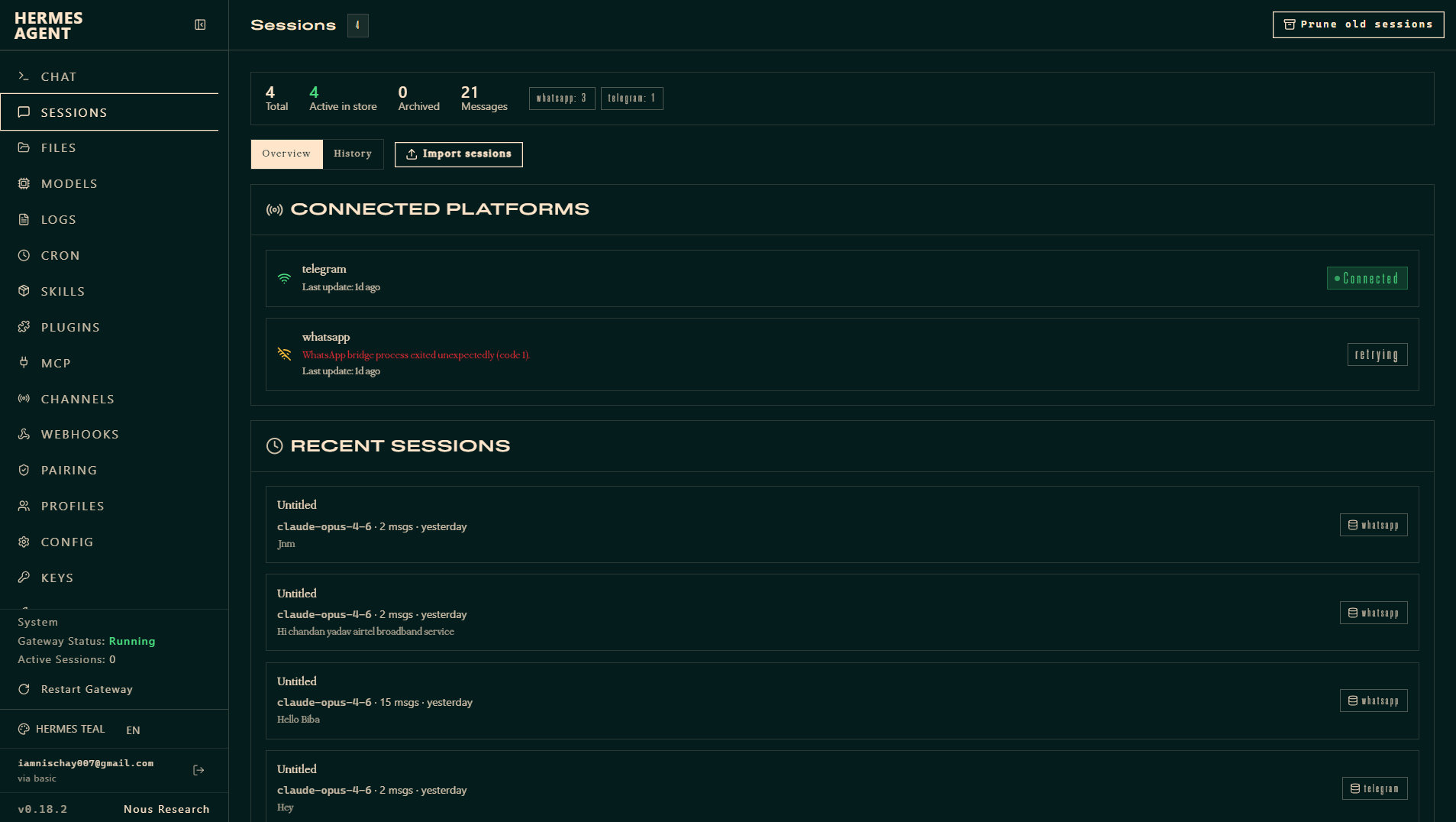
Sessions
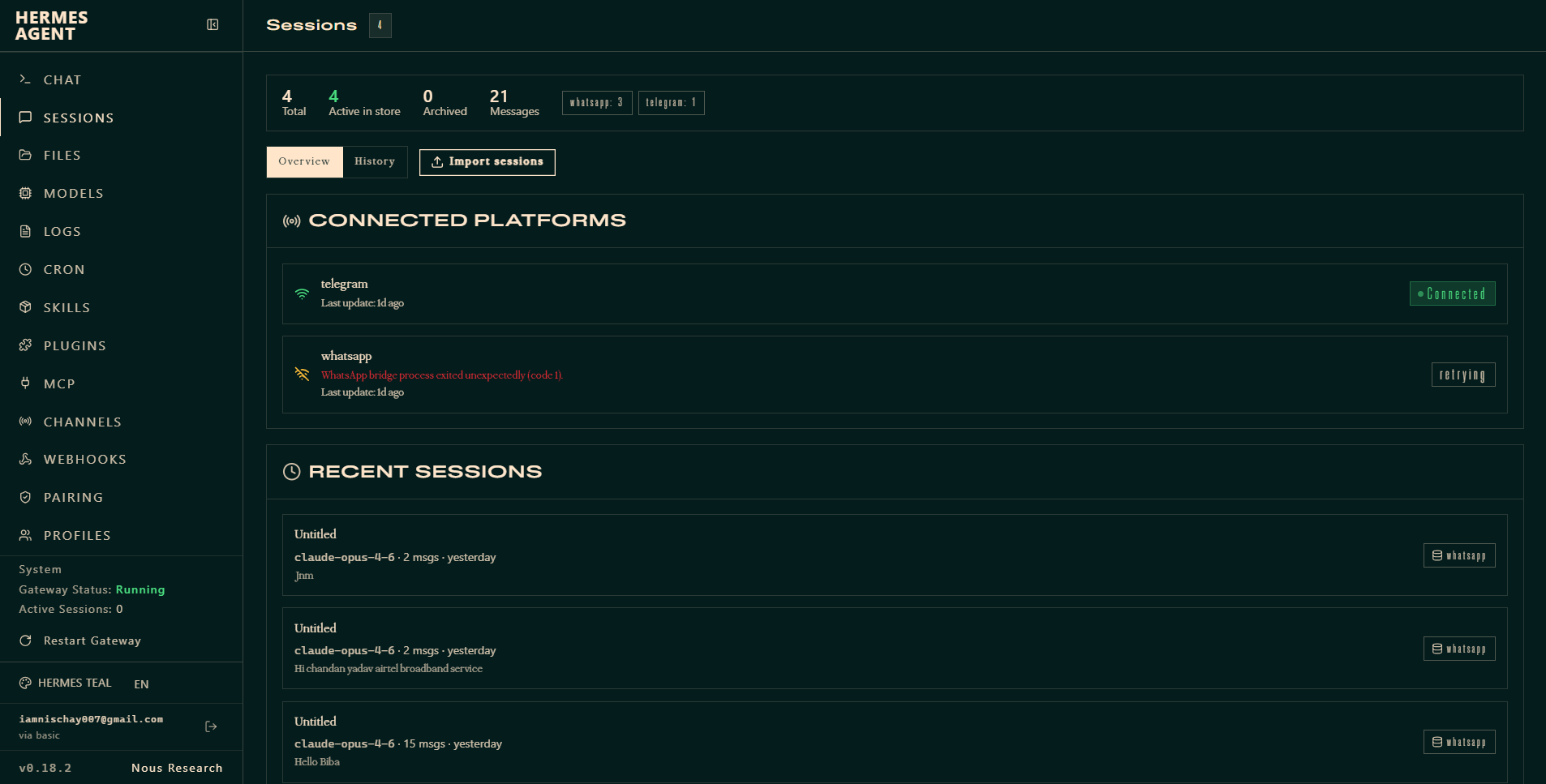
The agent's conversation history. Counters show Total, Active, and Archived sessions plus total Messages; you can search across message content and import sessions from elsewhere. Each conversation the agent has, on any channel or in Chat, is recorded here.
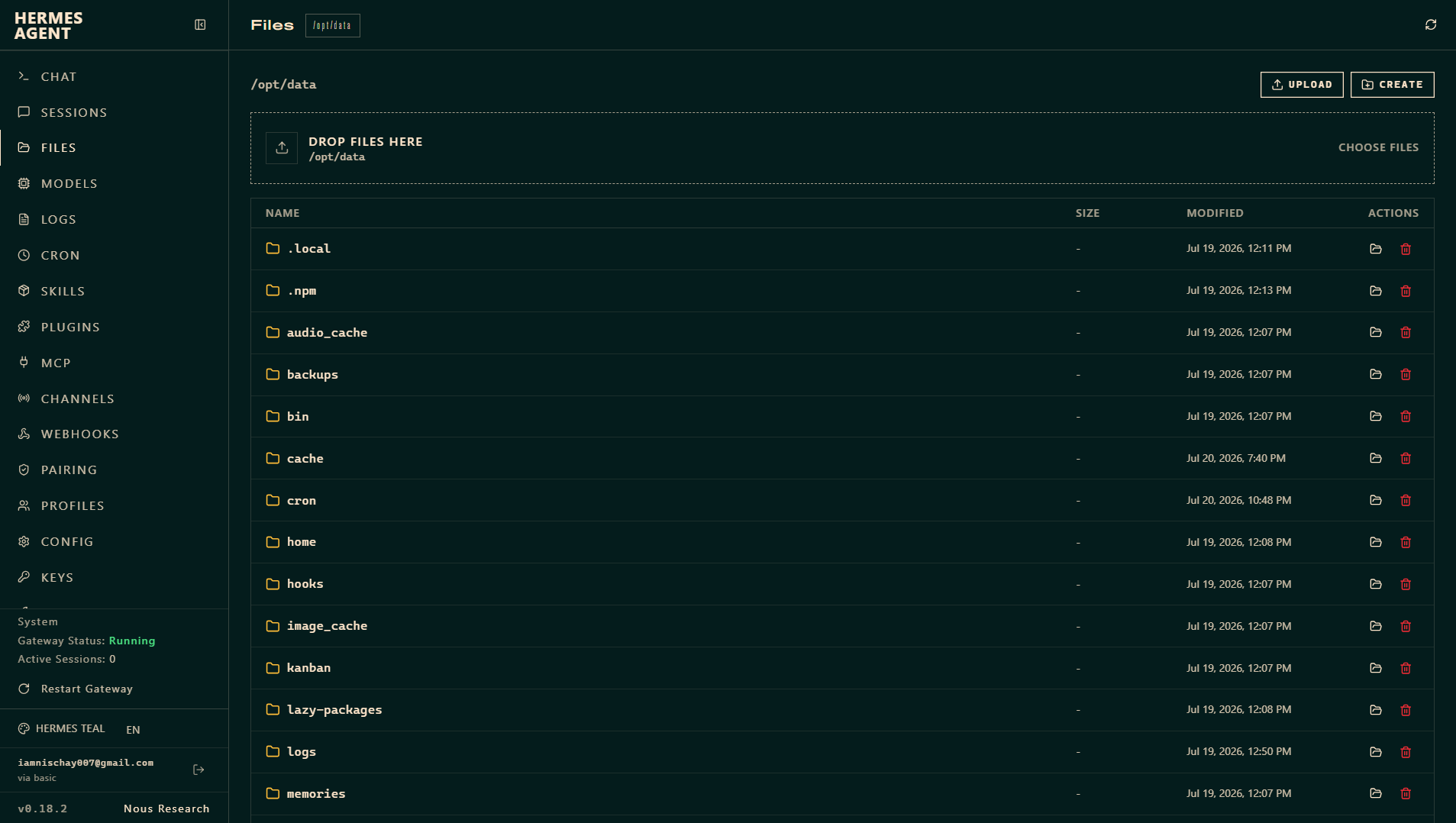
Files
A file manager for the agent's working directory (/opt/data). Upload (or drag-and-drop), create folders, browse, and delete. This is where the agent keeps its caches, backups, cron data, and its memory and notes files.
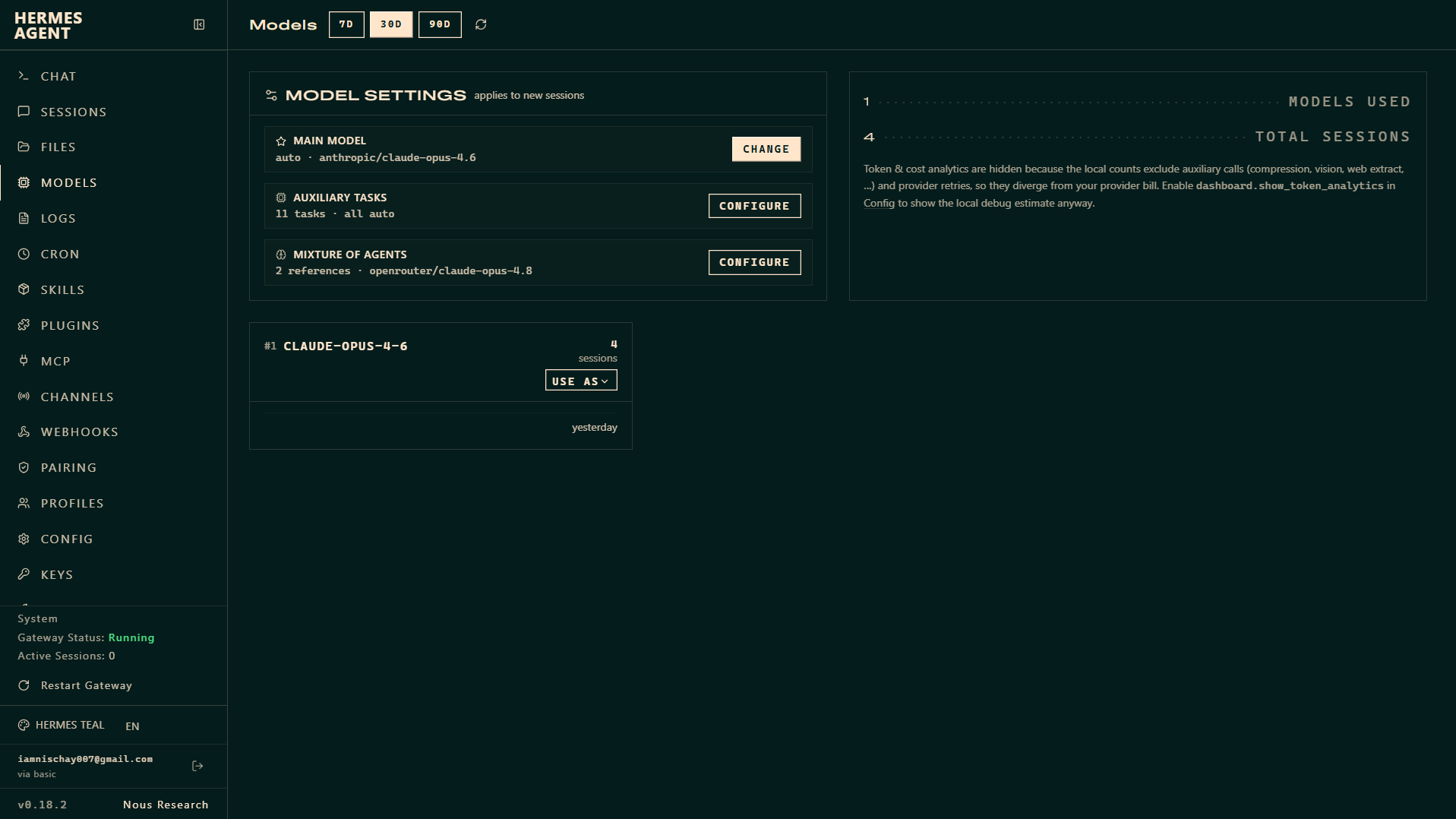
Models
Control which models the agent uses; these settings apply to new sessions.
- Main model — the primary model, for example
anthropic/claude-sonnet-5served via OpenRouter. Change it here. - Auxiliary tasks — the models used for the agent's supporting tasks, left on auto by default.
- Mixture of agents — optionally reference a second model (for example
claude-opus-4.8) to combine answers.
A usage view (7 / 30 / 90 days) shows models used and session counts. Detailed token and cost figures are hidden by default, because local counts exclude auxiliary calls (compression, vision, web extraction, and more) and provider retries, and so differ from your provider bill.
Skills
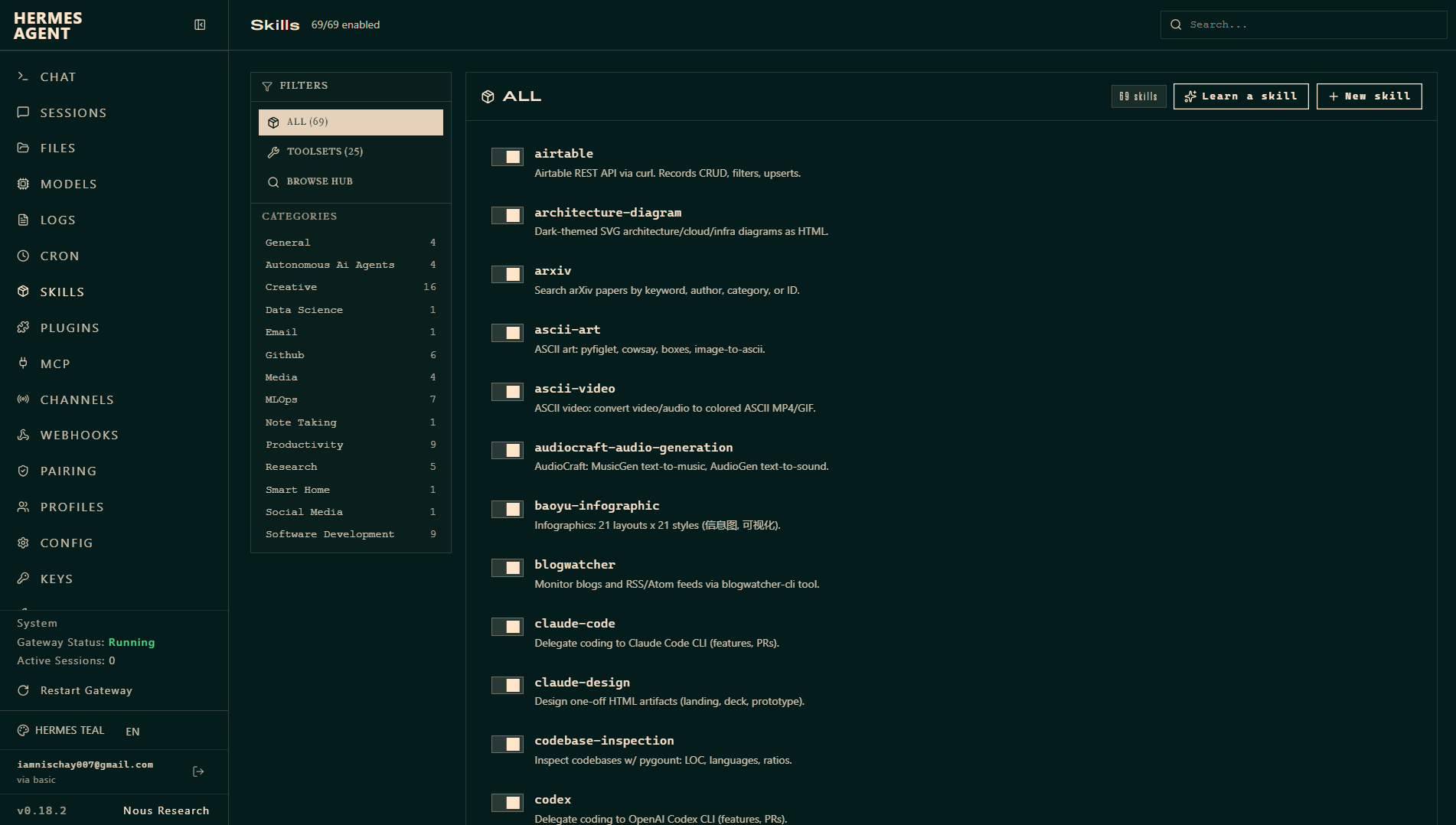
Hermes ships with a large library of skills — self-contained capabilities such as generating diagrams, searching arXiv, driving GitHub, editing PowerPoint decks, controlling smart-home lights, or delegating coding to Claude Code. They are grouped into categories (Creative, Software Development, MLOps, GitHub, Productivity, Research, and more). Toggle each skill on or off, search the list, browse the hub for more, or author a new skill. This install shows 69 skills across 14 categories.
Plugins
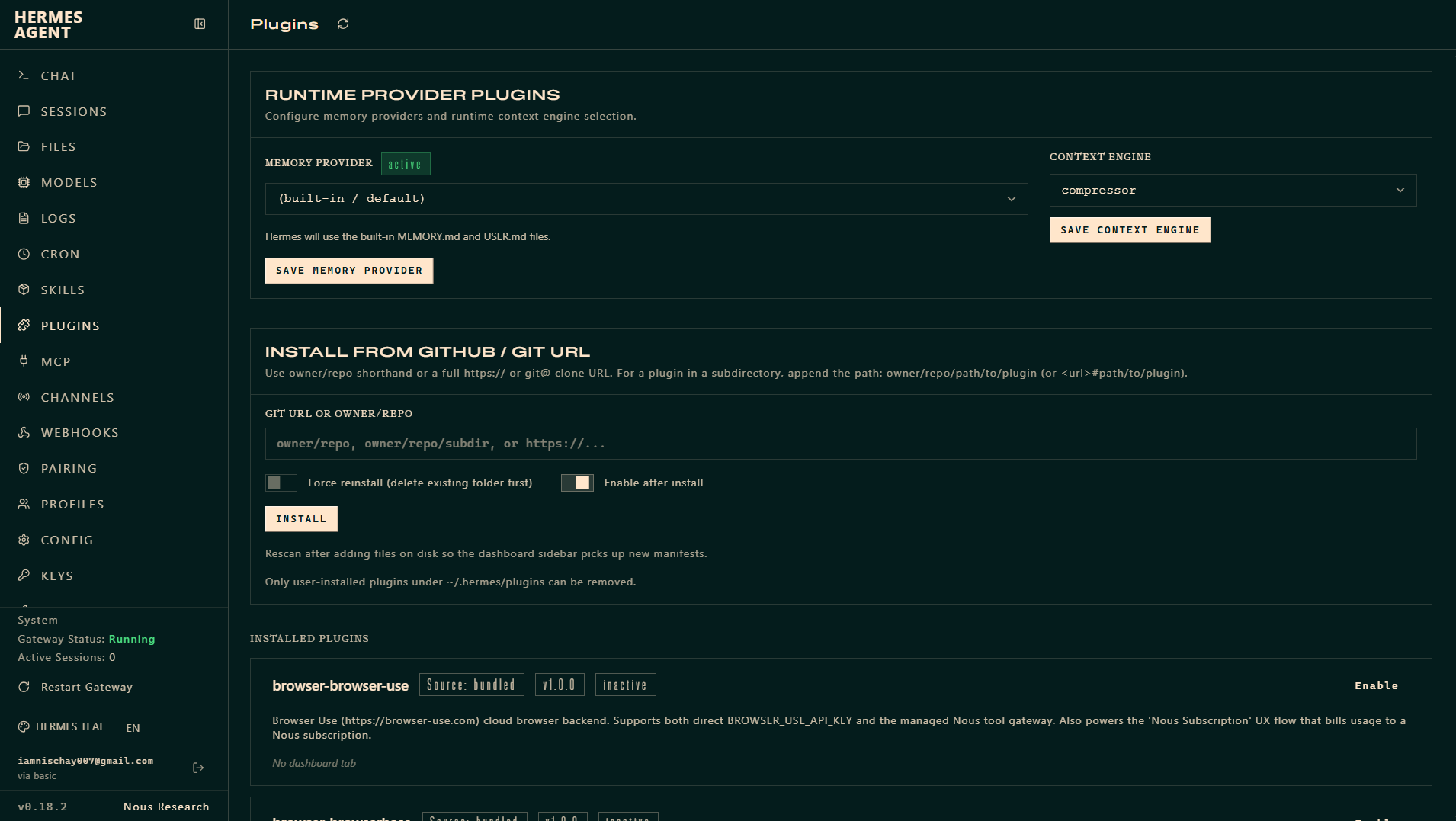
Two things live here. Runtime provider plugins let you choose the memory provider (the default uses built-in MEMORY.md and USER.md files) and the context engine (for example a compressor). And you can install community plugins straight from a GitHub owner/repo or a full git URL — including from a subdirectory — with force-reinstall and enable-after-install options.
MCP
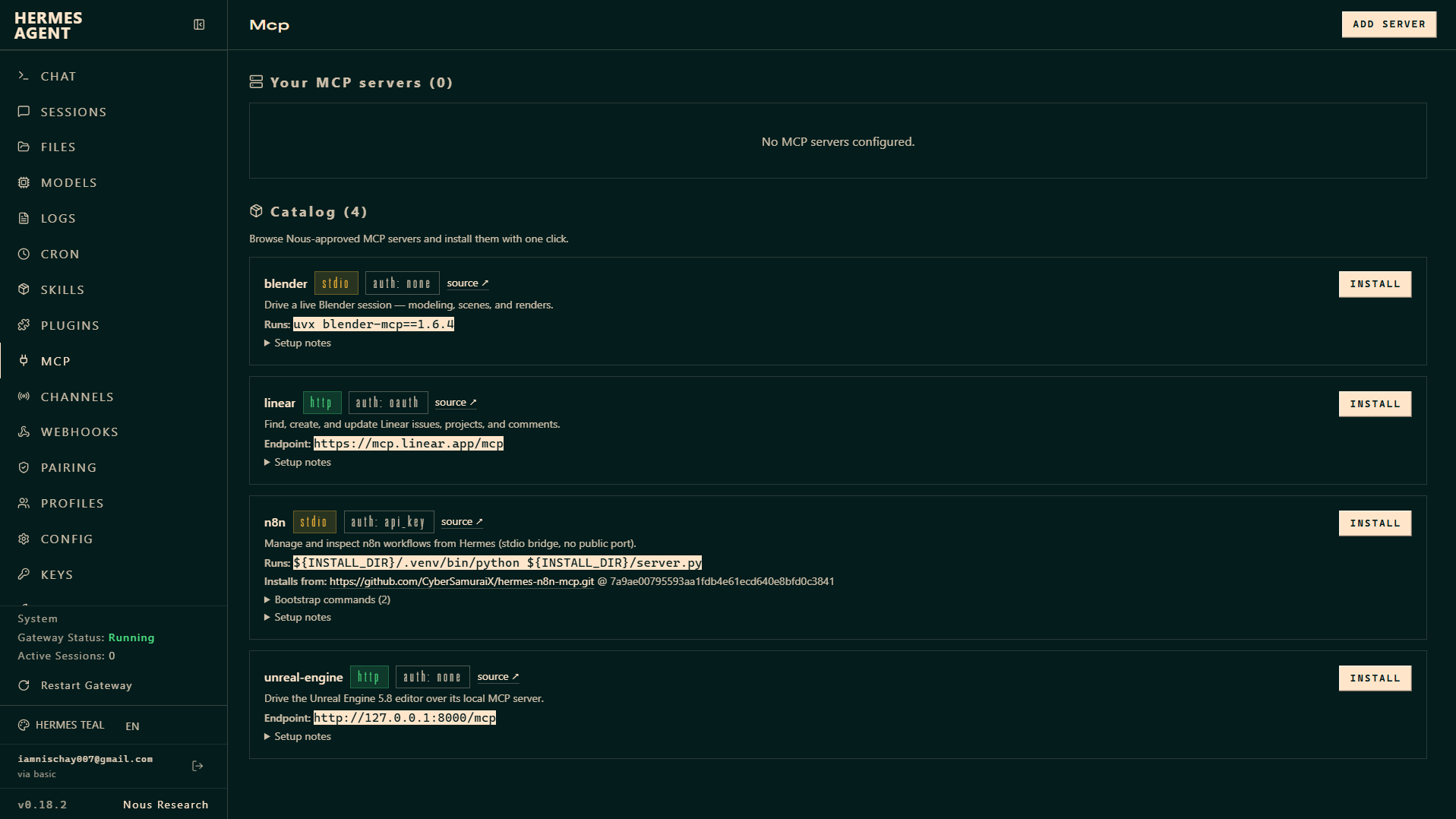
Connect Model Context Protocol servers, which give the agent extra tools. Add your own server, or one-click install from a curated catalog (this build lists blender, linear, n8n, and unreal-engine). Each catalog entry shows its transport (stdio or http), how it authenticates (none, OAuth, or an API key), its run command or endpoint, and setup notes.
Cron
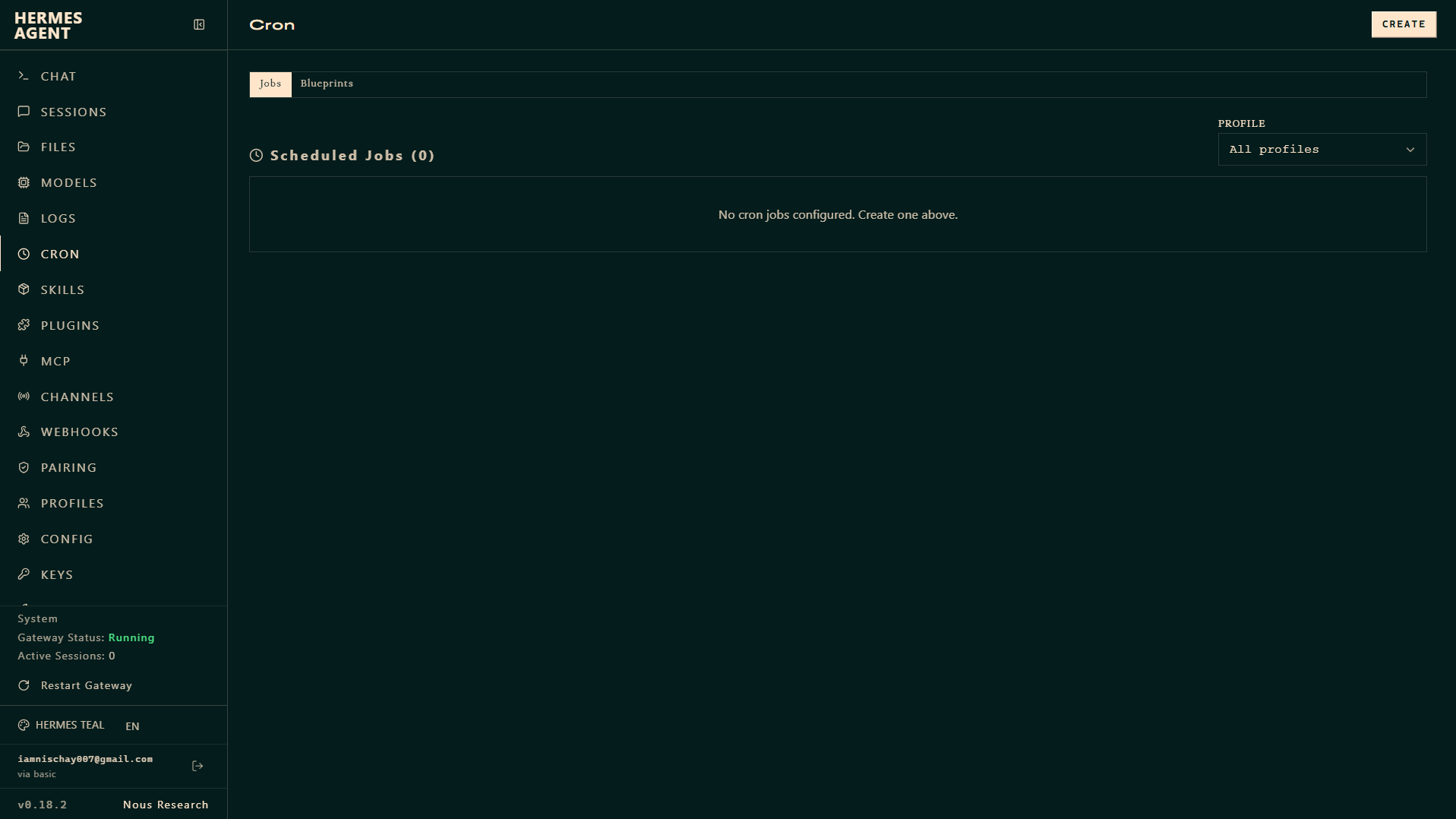
Schedule recurring jobs for the agent — from reusable Blueprints or from scratch — and filter them by profile. Use it for anything the agent should do on a timer, like a daily summary or a periodic check.
Webhooks
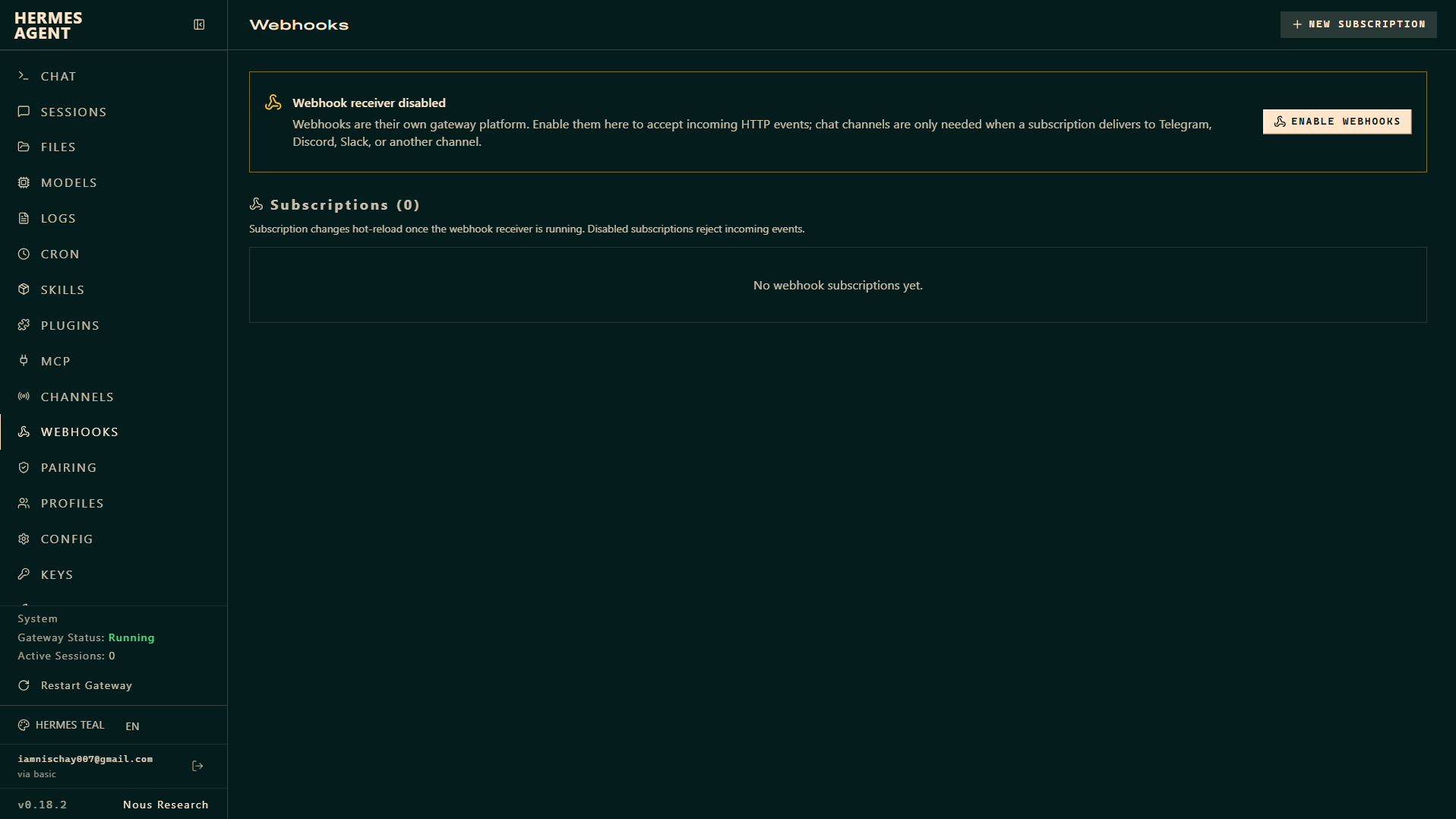
Webhooks are their own inbound gateway. Enable the receiver to accept incoming HTTP events (for example from GitHub), then create subscriptions that act on those events — optionally delivering them into a chat channel such as Telegram, Discord, or Slack. Subscription changes hot-reload once the receiver is running.
Logs
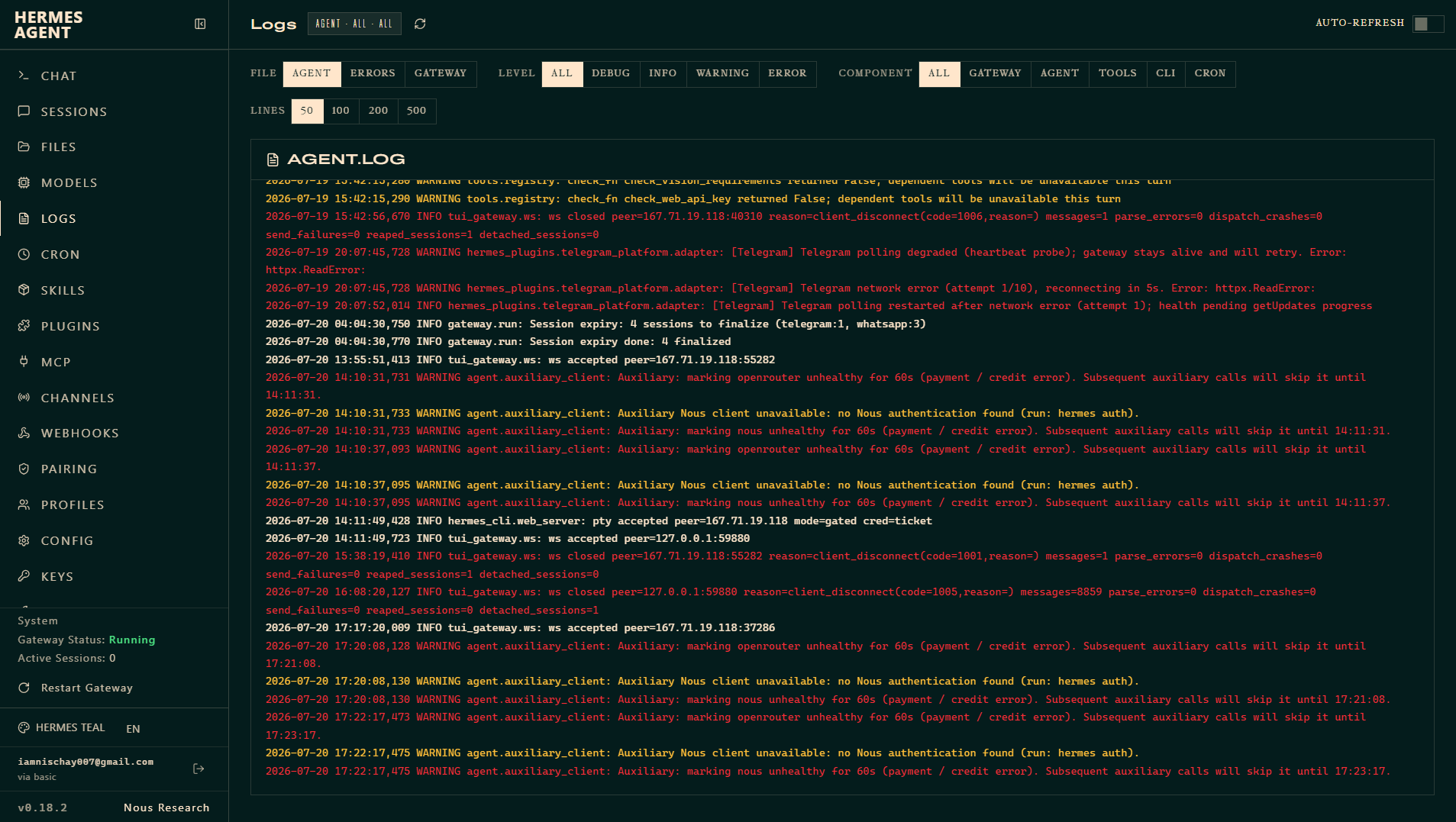
Tail the agent's output live. Switch between the agent, gateway, and error logs; filter by level (debug through error) and by component (gateway, agent, tools, CLI, cron); choose how many lines to show (50–500); and toggle auto-refresh. This is the first place to look when a channel is not responding or a reply goes wrong.